 Fieldmark Documentation
Your First Notebook in 25-30 Minutes 🚀
Welcome to Fieldmark! In the next 25-30 minutes, you’ll create your first data collection notebook and enter your first record. No experience needed - just follow along!
What You’ll Achieve
By the end of this guide, you’ll have:
✅ Created a working notebook from scratch
✅ Added three essential fields for data collection
✅ Configured critical settings to prevent common mistakes
✅ Activated your notebook and entered your first record
✅ Gained confidence to build more sophisticated data collection tools
🎯 What you’re building: A notebook called “My First Survey” that records one survey site per record. It holds a single form, Site Details, with one section, Basic Information, containing three fields: Site Name for typed text, Site Type for a choice from a list such as Habitation or Mortuary, and Site Photo for a camera capture. In Step 4 you’ll activate the notebook in the data collection app and fill it in once.
Before You Start
You’ll need: A Fieldmark account that can create notebooks in a team (for example, a team manager or team administrator). If you don’t have an account yet, or you’re not sure you can create notebooks, ask your project administrator or team admin.
Browser: Works best with Chrome, Firefox, or Safari. Make sure you’re using a recent version.
Device: The Notebook Editor needs a computer or tablet, since building a notebook involves a lot of on-screen detail. For collecting data, the app runs on Android 11 or later and on iOS, and there is no minimum hardware specification.
For a device to buy or borrow, a good starting point is anything from the last two years. On Android, aim for mid-range or better. Class matters more than age there: a flagship phone several years old is usually fine, if a little slower, whilst an entry-level tablet can be painful to work on even when new, so it is worth checking where a cheap tablet sits in its maker’s range before relying on it in the field. Any recent iPhone is comfortable, and older ones generally cope too. Full details are in Operating Systems.
URLs you’ll use:
Dashboard URL: https://dashboard.fieldmark.app (for designing and managing notebooks)
Data Collection App URL: https://app.fieldmark.app (for entering records)
Note: Your organisation may have custom URLs - check with your administrator
📖 Quick Terms to Know
Before we dive in, here are seven terms you’ll see:
Dashboard: Your home screen after logging in - think of it as mission control
Notebook: A customisable data collection form (like a digital fieldwork form)
Notebook Editor: The visual tool where you build and modify notebooks and templates (sometimes just called “Editor”)
Form: A kind of thing your notebook records, such as a site, a specimen, or an interview. Each record is an instance of one form, and links between records are set up between forms
Section: A page of fields inside a form. Sections control how a form is laid out for the people filling it in, and have no effect on what the data means
Records: The actual data entries people create using your notebook
Fields: Individual input elements (like text boxes or photo buttons) in your form
Step 1: Access Your Dashboard (3-5 minutes)
Let’s begin by logging into Fieldmark and finding our way around.
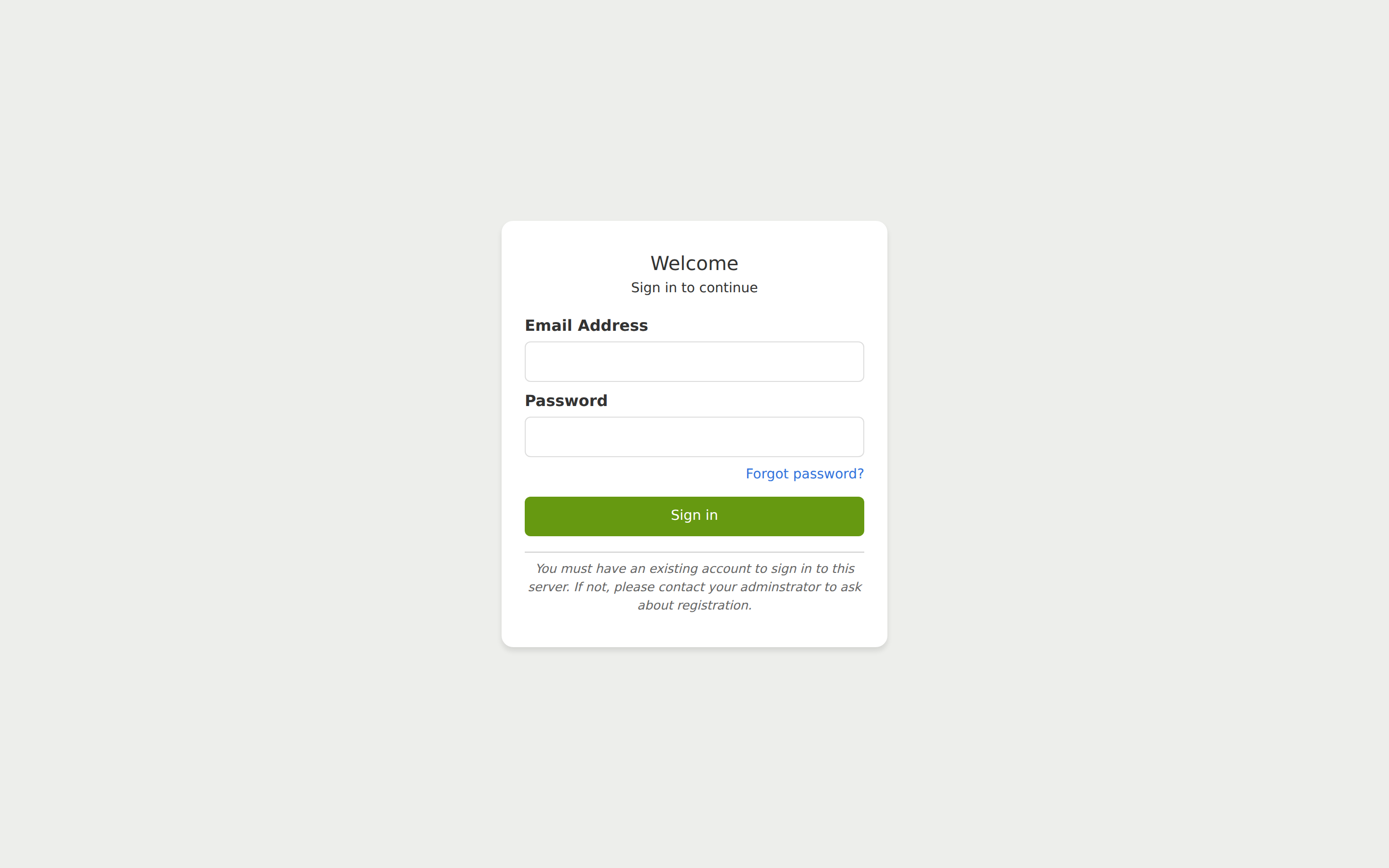
Login to Fieldmark
Open your browser and navigate to https://dashboard.fieldmark.app
Enter your email and password (some servers also offer single sign-on providers, such as Google)
Click Sign in
Welcome to Your Dashboard!
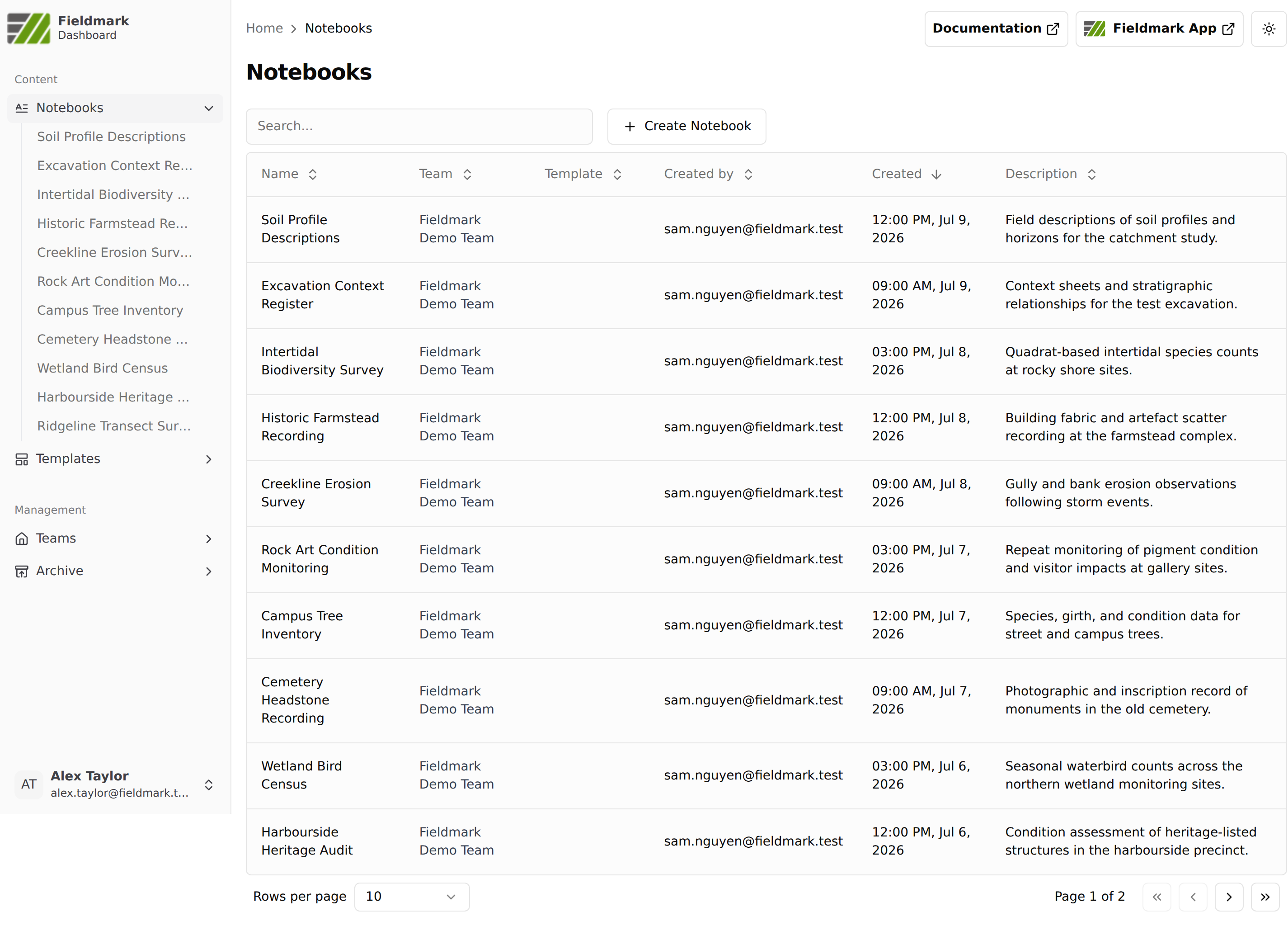
After logging in, you’ll see the Dashboard interface:
Left sidebar: Navigation in two groups: Content (Notebooks, Templates) and Management (Teams, Archive). Notebooks and Teams expand to list individual items
Main content area: Where you’ll see lists of notebooks, templates, and teams
Top bar: Documentation and Fieldmark App links (both open in a new tab), plus a light/dark theme toggle
User menu: Your name and email in the bottom-left corner
💡 Seeing more options? Administrators with higher-level roles also see a Users entry under Management. If your sidebar has extra items, you have broader permissions. Everything in this tutorial works the same way.
✨ Pro Tip: Bookmark this page! You’ll be coming back here often. In most browsers, press
Ctrl+D(Windows/Linux) orCmd+D(Mac) to bookmark.
✓ You’ll Know It Worked When…
You see your name or email in the bottom-left user menu
The left sidebar shows Notebooks and Templates under Content, and Teams and Archive under Management
Clicking Notebooks shows a list of notebooks in the main window
No error messages or login prompts appear
Great! You’re in. Now let’s create something amazing.
Step 2: Create Your First Notebook (5-8 minutes)
IMPORTANT: We’re creating a notebook directly, not from a template. Templates are an advanced feature - for now, we’ll start simple.
Create a New Notebook
From the Dashboard:
Click Notebooks in the left navigation
Click + Create Notebook
Name Your Creation
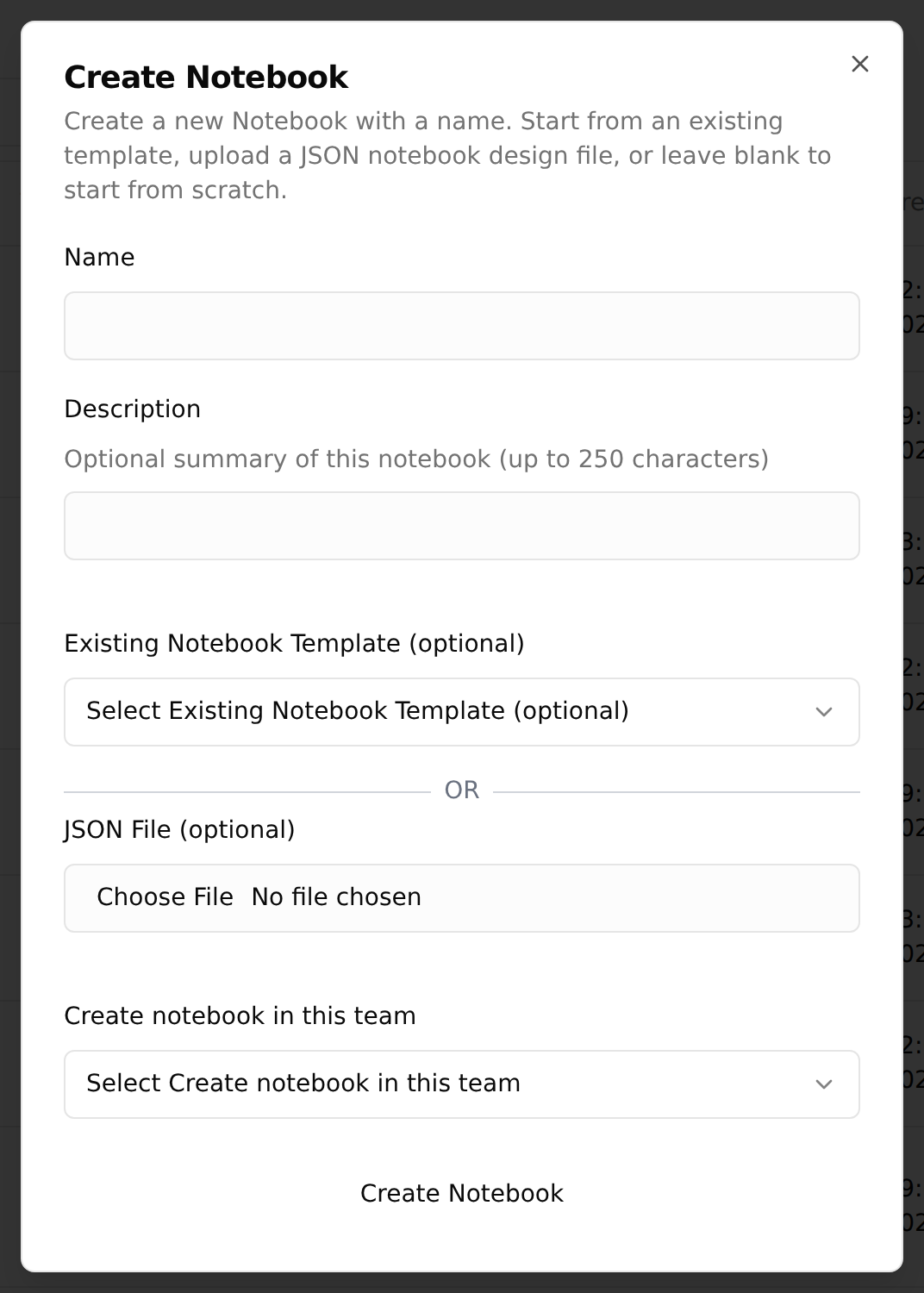
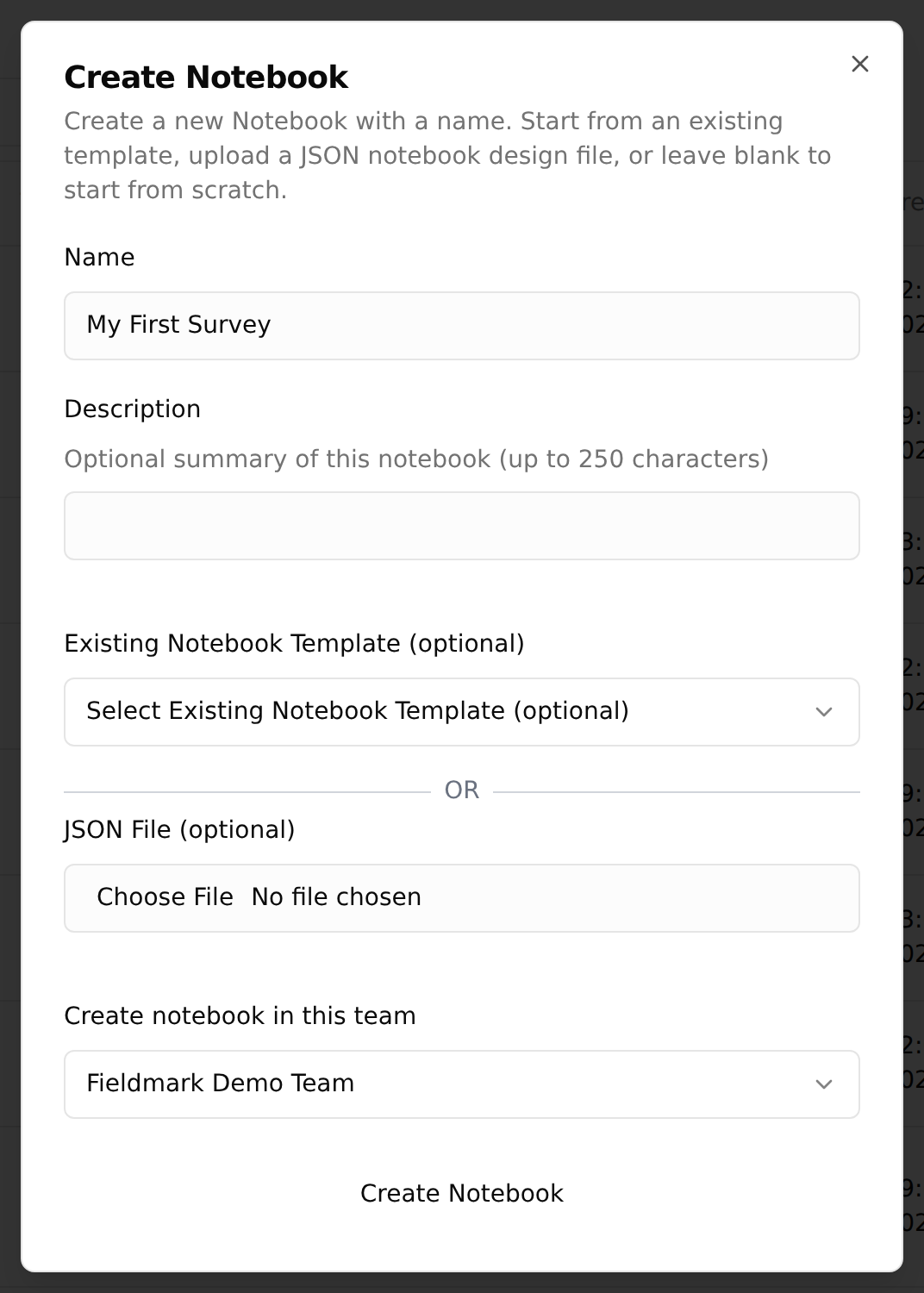
In the creation dialogue:
Name: Enter “My First Survey” (or choose your own name)
Description (optional): A short summary of the notebook, up to 250 characters. You can leave it empty for now
Create notebook in this team: Choose your team from the dropdown. This is required: if you skip it, the dialogue will show an error when you try to create the notebook
Leave the template and JSON options empty (those are advanced features)
Click Create Notebook
Find Your New Notebook
After you click Create Notebook, the dialogue closes and you stay on the notebook list, which refreshes to include your new notebook. The list is sorted by creation date, newest first, so your new notebook appears at the top of the list. It also appears in the left sidebar under Notebooks.
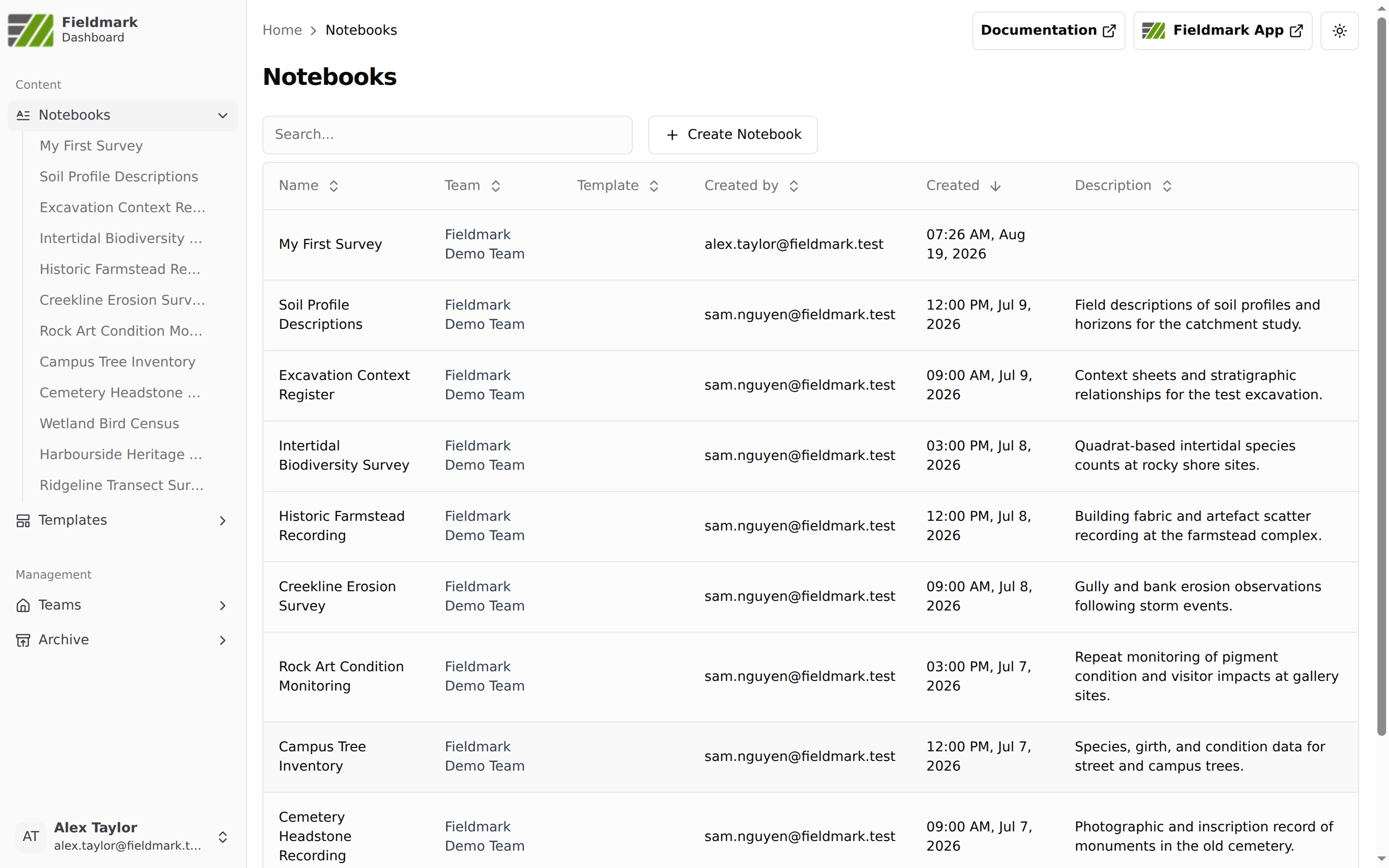
If you have many notebooks, use these navigation tools:
Search bar: Type “My First Survey” in the search box at the top of the list
Pagination controls: Look at the bottom for “Rows per page” and “Page 1 of 2” with arrow buttons to navigate pages
Click on your notebook name to open it
Open the Notebook Editor
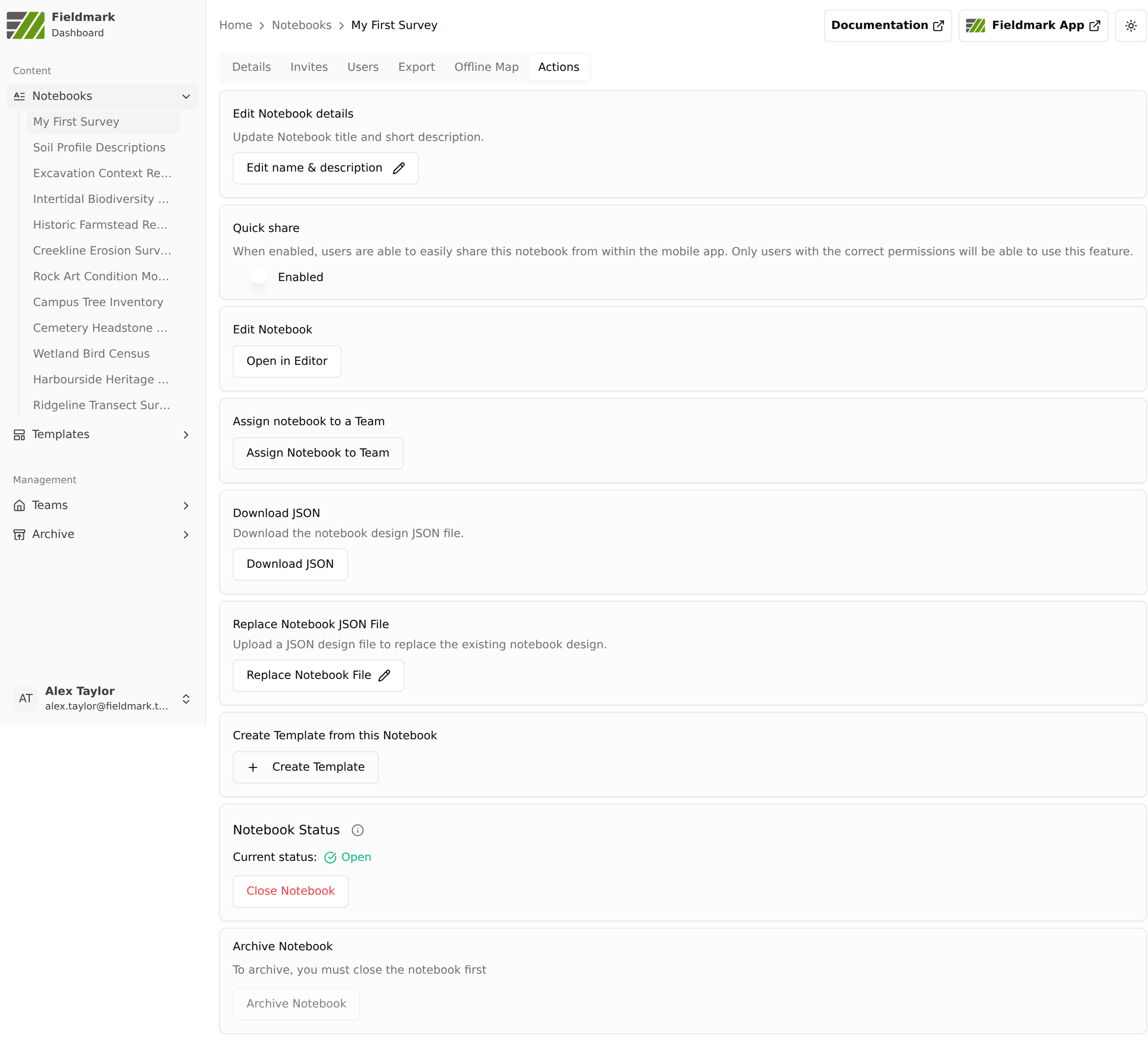
Your notebook’s page has a row of tabs: Details, Invites, Users, Export, Offline Map, and Actions.
Click the Actions tab
Click Open in Editor
The Actions tab also has a Quick share panel, set to Enabled by default. It lets users with the right permissions share the notebook from within the data collection app. You can leave it as it is for this tutorial.
Hello, Notebook Editor!
Fantastic! You’re now in the Notebook Editor. This is where the magic happens.
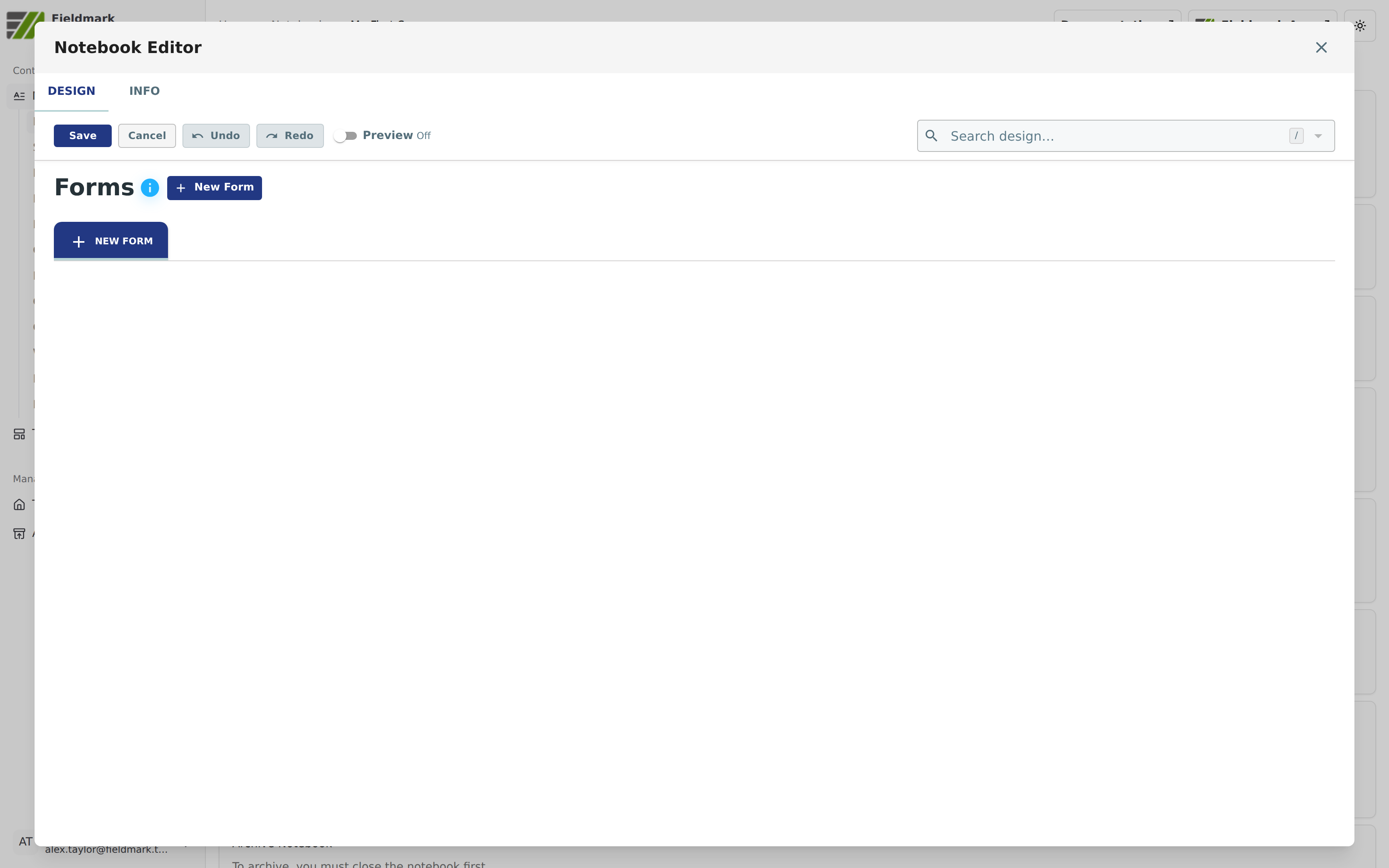
The Editor opens as a full-screen window titled “Notebook Editor”. You’ll see the main interface elements:
Tab bar: DESIGN and INFO tabs at the top left
Toolbar: Save (blue), Cancel, Undo, and Redo buttons on the left, with a Preview toggle beside them
Search design…: A search box at the top right for finding fields in large notebooks (once your notebook has some content, press
/to jump to it)The Forms panel with its blue + New Form button. Two more panels, Sections and Fields, appear below it once you create your first form; each has its own blue “+ New …” button
🎨 About the colours: Fieldmark’s standard configuration puts blue buttons in the Notebook Editor and green ones in the Dashboard and the data collection app, which is what the screenshots here show. Fieldmark can also be themed per organisation, so if your institution runs a branded instance your buttons may be different colours. Button labels, positions, and behaviour stay the same whatever the theme. Where a colour does not match, go by the button’s name.
⚠️ Common Mistake: Don’t worry if it looks empty - that’s normal! We’re about to fill it with useful fields. Remember to click the blue Save button in the toolbar when you want to save your work.
💡 Tip: Notice the UNDO and REDO buttons in the toolbar. Use these to recover from accidental deletions or changes. They’re your safety net while building forms!
✓ You’ll Know It Worked When…
The Notebook Editor opens as a full-screen window with the DESIGN tab selected
The Forms heading is visible with a blue + New Form button
Save, Cancel, Undo, and Redo buttons are visible in the toolbar
The “Search design…” box is visible at the top right
No error messages appear
📱 Mobile Users: The Notebook Editor works best on tablets or computers. If you’re on a phone, you might want to switch devices for this setup phase. Once created, your notebook will work perfectly on mobile for data collection!
Understanding Notebooks Structure
Before we add fields, let’s understand how Fieldmark organises your data:
Notebooks contain Forms → Forms contain Sections → Sections contain Form Fields (where you enter data)
Think of it like this:
📓 Notebook = Your entire survey or data collection project (“My First Survey”)
📋 Form = A kind of thing you record (“Site Details”, “Environmental Observations”, etc.). Every record you collect is an instance of one form
📂 Section = A page of fields within a form, grouping related fields together (“Basic Information”)
✏️ Form Field = Individual data entry points (text boxes, dropdowns, etc.)
Forms and sections do different jobs, and it’s worth being clear about which is which before you build them. Forms are the level your data is modelled at. Each form defines a kind of record, every record belongs to exactly one form, and when you link records together later, those links are set up between forms. Sections decide which fields appear on which page for the person filling the form in. Moving a field into a different section changes where it appears, not what it records, so you can reorganise sections at any point without affecting the data you’ve already collected.
Right now, we have an empty notebook. Let’s create its first form!
Create Your Form
Click the blue “+ New Form” button next to the Forms heading
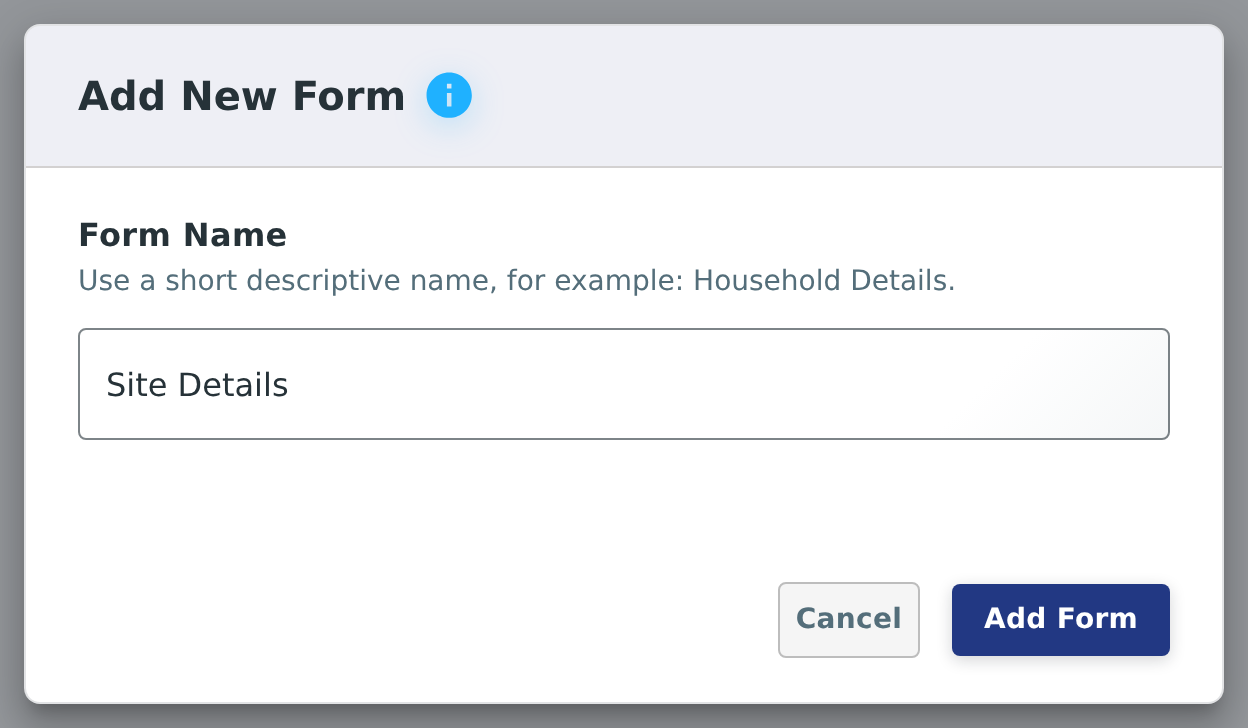
An “Add New Form” dialogue opens, with a Form Name box pre-filled with a placeholder name and the hint “Use a short descriptive name, for example: Household Details”
Replace the placeholder with “Site Details” (or another name that describes what data you’ll collect)
Click “Add Form” to create it
✨ Pro Tip: Use descriptive form names like “Daily Observations”, “Specimen Collection”, or “Interview Notes” - they’ll make it easier to navigate your data later.
✓ You’ll Know It Worked When…
A SITE DETAILS tab appears in the Forms panel, next to a “+ NEW FORM” tab
Form controls are visible above it: Edit name, Reorder, Settings, Include “Add New Record” button, and Delete
A dialogue opens automatically inviting you to add your first section
Now you’re ready to add a section to organise your fields!
Create Your First Section
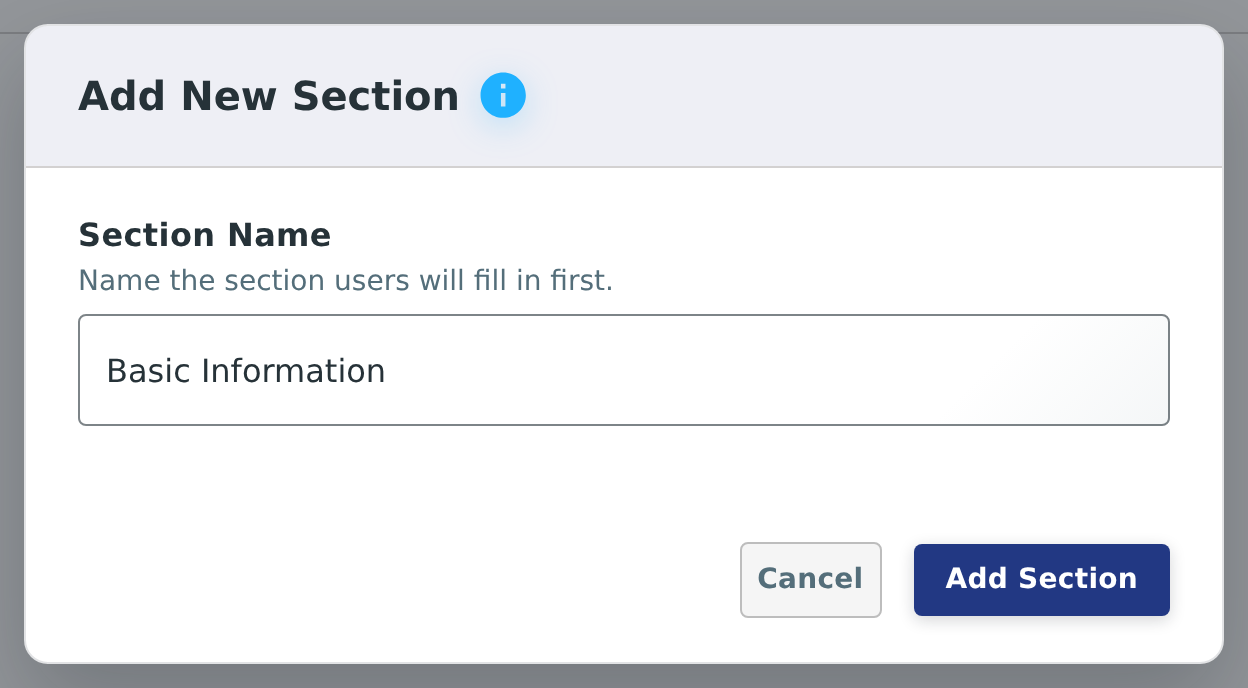
Sections help organise related fields within a form. Conveniently, Fieldmark opens the “Add New Section” dialogue for you as soon as the form is created:
Replace the pre-filled name (“New Section”) with “Basic Information” (or another name that groups your first set of fields). The dialogue’s hint reads “Name the section users will fill in first”
Click “Add Section” to create it
If you closed the dialogue by accident, click the blue “+ New Section” button next to the Sections heading instead
✨ Pro Tip: Use section names like “Location Details”, “Measurements”, or “Photos” to group related fields - this makes forms easier to navigate, especially on mobile devices.
✓ You’ll Know It Worked When…
Your section appears in the Sections panel as a card: “Basic Information” with a numbered badge showing “1” (first section)
Section controls appear: Edit name, Reorder, Duplicate, Move section to another Form, Add condition to section, and Delete
Below it, the Fields panel shows a blue “+ New Field” button
“Visible fields” and “Hidden fields” areas are shown, each with Expand all / Collapse all controls
The section is ready to receive form fields
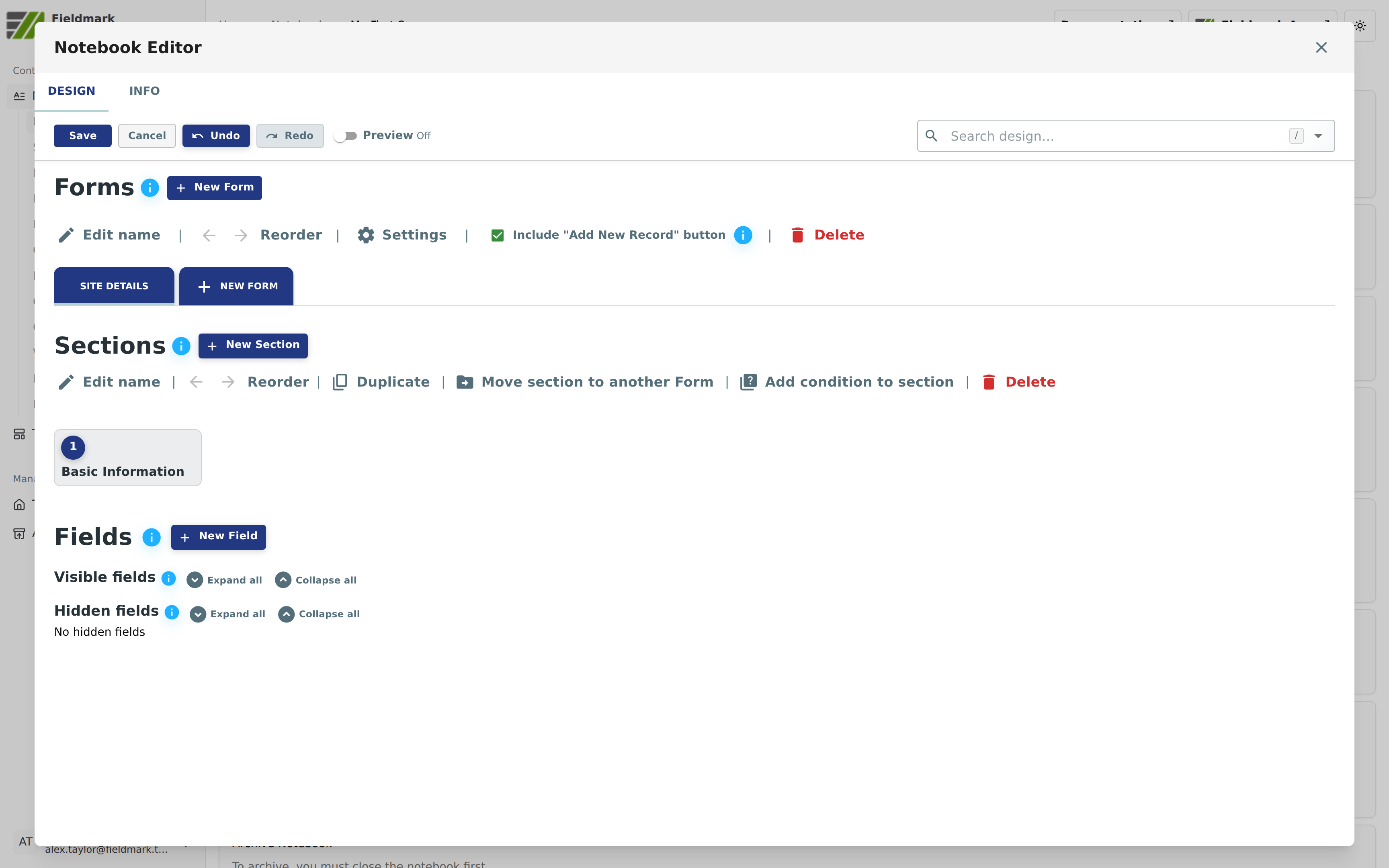
Perfect! Now your form has a section, and we’re in the main editing interface where we’ll add fields!
Step 3: Add Your Fields (8-12 minutes)
Now for the fun part - let’s add fields to collect data! We’ll add three essential fields that demonstrate major field categories: text input, selection options, and media capture.
Field 1: Site Name (Text Field)
Adding a field takes two steps: pick the field type from a card gallery (the field is added instantly), then name and configure it in the field editor.
Click the blue “+ New Field” button in the Fields panel
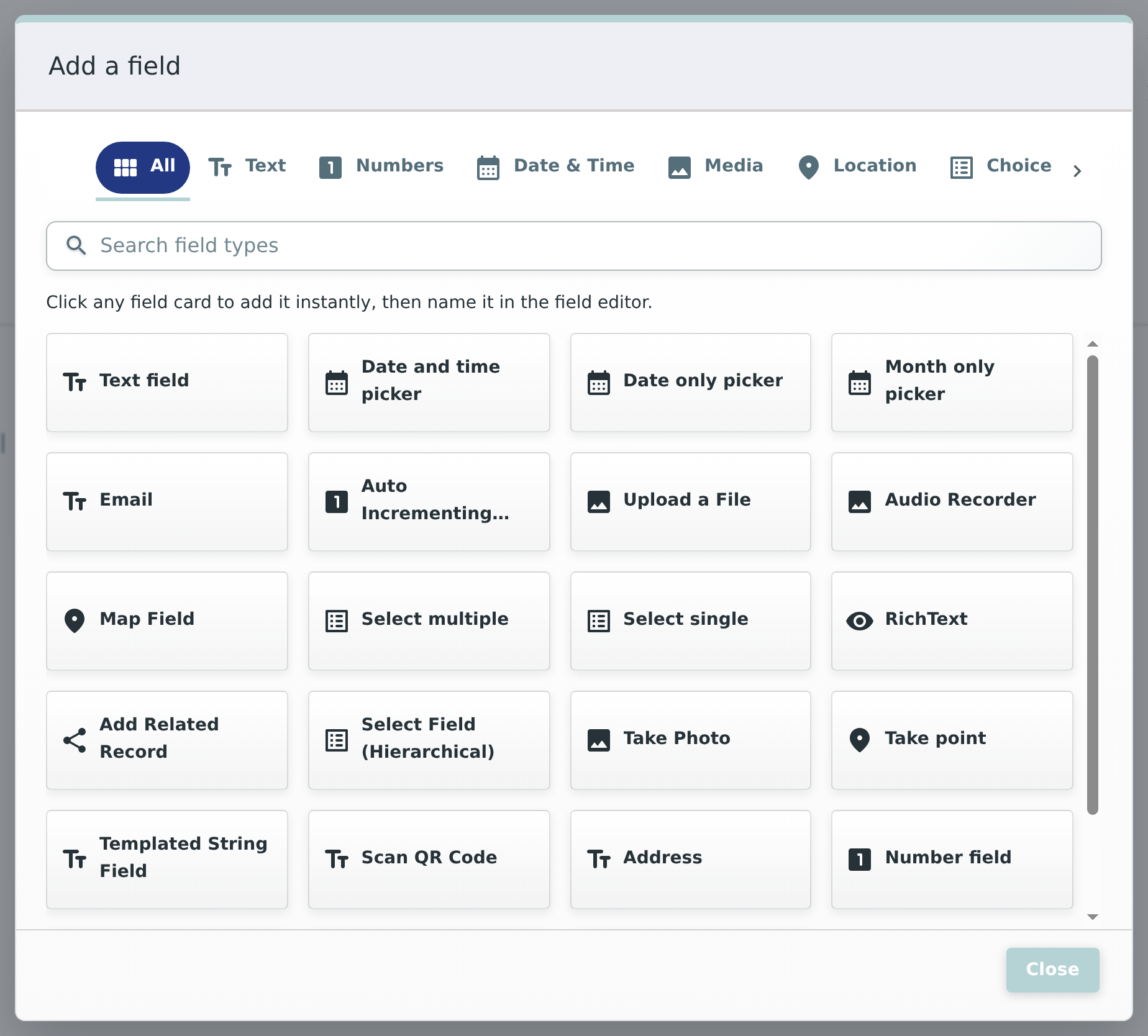
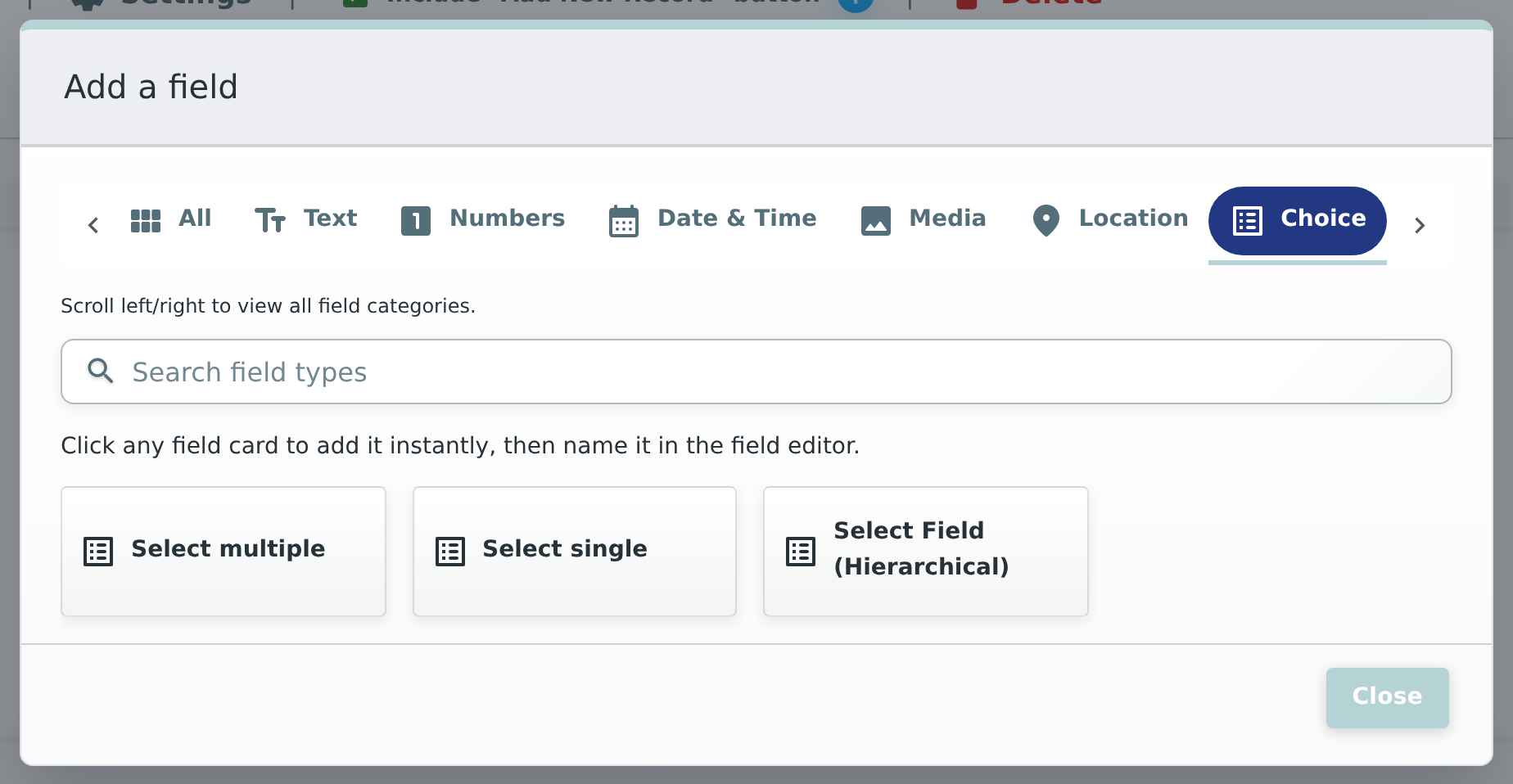
In the “Add a field” dialogue that opens, you’ll see:
Category tabs across the top: All, Text, Numbers, Date & Time, Media, Location, and Choice, with Relationship and Display behind the chevron (>) at the end of the row
A “Search field types” box
A gallery of field-type cards, with the hint “Click any field card to add it instantly, then name it in the field editor”
Click the “Text field” card (single-line text input). The field is added immediately and the dialogue closes
Find the new field in the “Visible fields” list (it’s called “New Field”) and click its header bar to expand it
Configure the field:
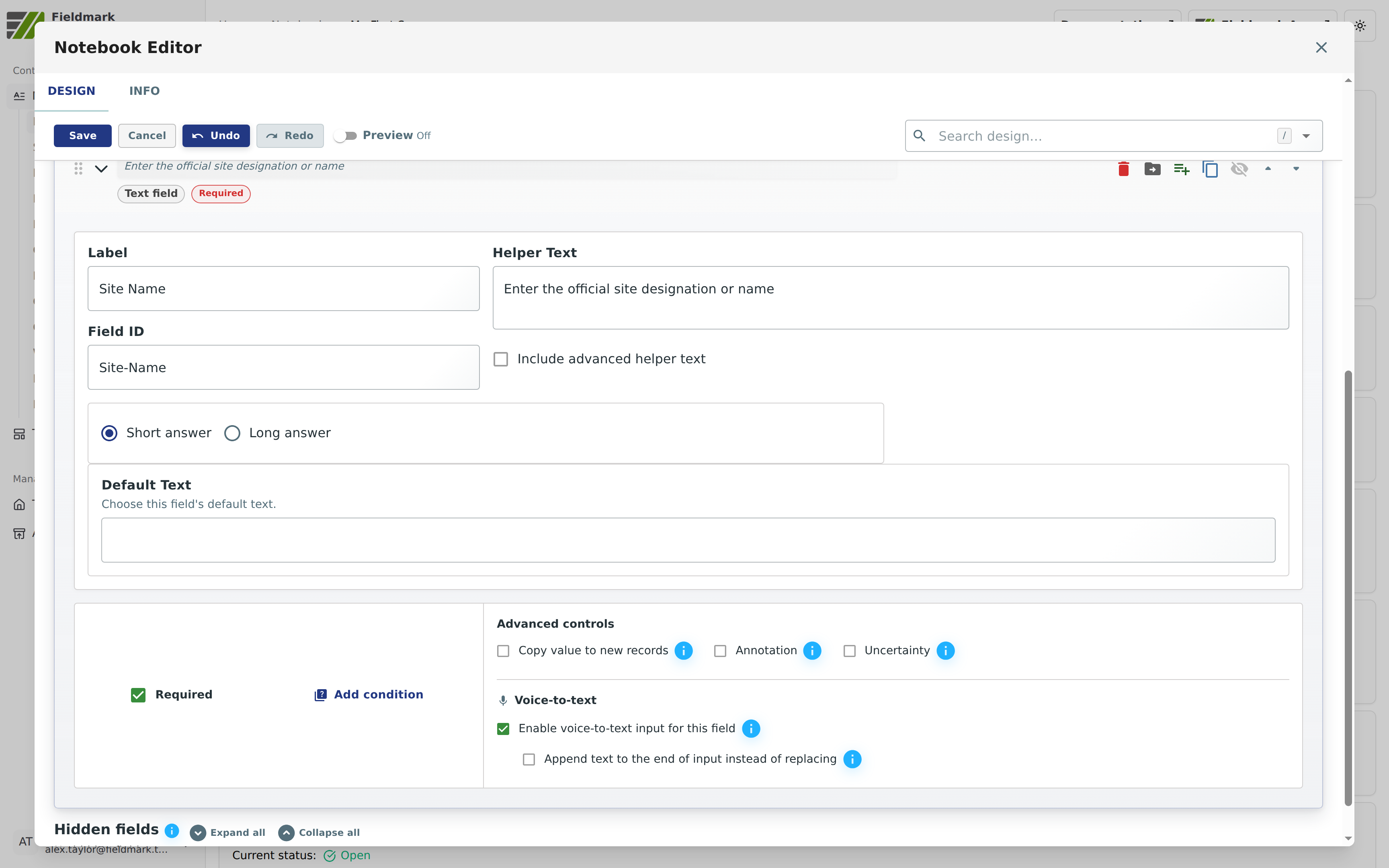
Label: Change “New Field” to “Site Name”
Field ID: Updates automatically to match (“Site-Name”). No need to touch it
Helper Text: Type “Enter the official site designation or name”
Required: Toggle ON ☑
⚠️ Name fields now, before collecting data. Records store their values under the Field ID, which follows the label for newly added fields. If you rename a field after records already exist, those records’ values stop appearing in lists (they show “-” instead). Renaming before any data is collected (as we’re doing here) is completely safe.
💡 More in the field editor: You’ll also see Short answer / Long answer options, a Default Text setting, a Voice-to-text toggle (on by default for text fields), and an Advanced controls group: Copy value to new records, Annotation, and Uncertainty. We’ll use Annotation and Uncertainty on the next field.
✓ You’ll Know It Worked When…
The “Site Name” field appears in the “Visible Fields” area
Helper text displays: “Enter the official site designation or name”
Required ☑ is checked
The field is ready for data collection!
💡 More Options: Fields can also have Advanced Helper Text (formatted popup help), Conditions (show/hide based on other fields), Annotations, or “Copy value to new records” for smart defaults. We’ll keep it simple for now!
Field 2: Site Type (Radio Buttons)
Now let’s add a choice field where users select one option from a list.
Collapse the Site Name field - click on its header bar to collapse it
Click the “+ New Field” button
In the “Add a field” dialogue:
Navigate to Choice fields: Click the Choice tab. If it’s out of view, use the chevron (>) at the end of the tab row (the hint reads “Scroll left/right to view all field categories”). You can also just type “select” in the Search field types box
Click the “Select single” card (one choice from a list, shown as radio buttons). The field is added immediately
Expand the new field (“New Field” in Visible fields) and change its Label to “Site Type”
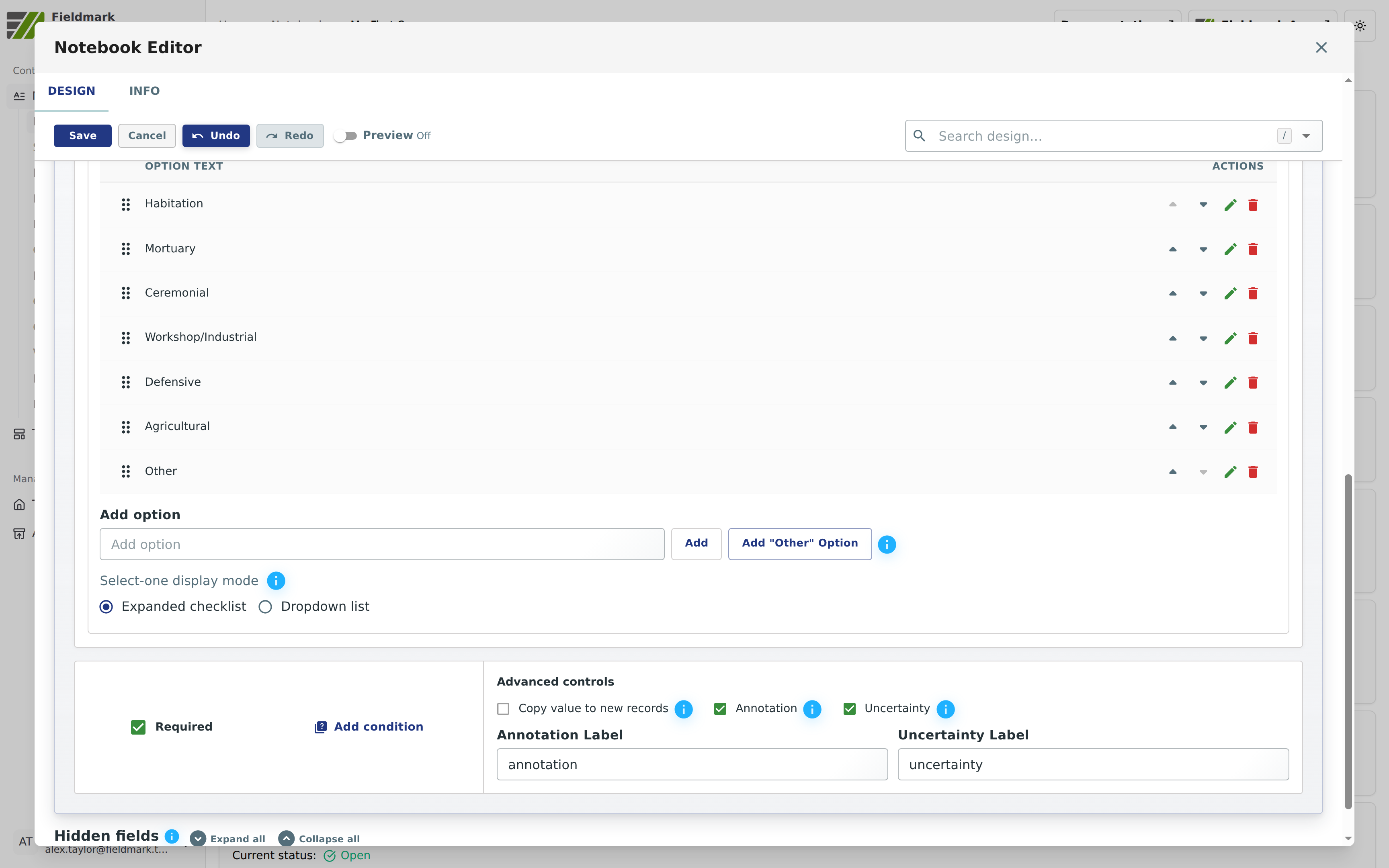
Add your options in the Options table - these are the choices users will see:
You’ll see one default option, “1”, with a pencil (Edit option) and bin (Delete option) icon in its Actions column
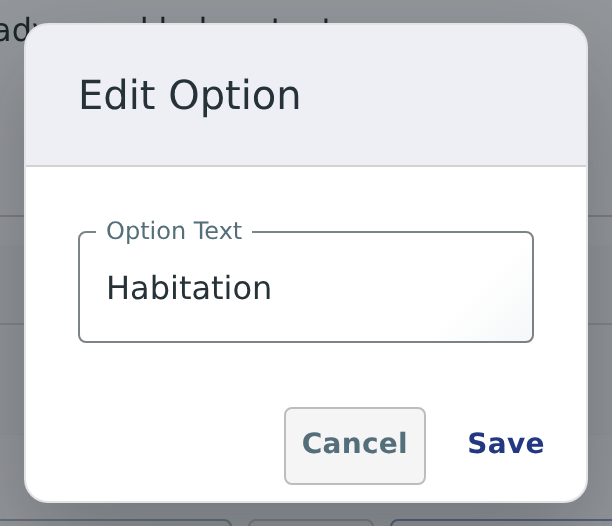
Click the pencil icon to open the “Edit Option” dialogue, change “1” to “Habitation”, and click Save
Now use the “Add option” box to add the remaining options: type “Mortuary” and click “Add”, then repeat for “Ceremonial”, “Workshop/Industrial”, “Defensive”, “Agricultural”, and “Other”
Reorder options if needed using the drag handle (⠿) or the up/down arrows in each row
💡 Also here: an Add “Other” Option shortcut, and a “Select-one display mode” choice: Expanded checklist (the default, which renders as the radio-button list data collectors see) or Dropdown list.
Configure the rest of the field:
Helper Text: Type “Select the primary function of this site”
Required: Toggle ON ☑
Annotation: Toggle ON ☑ (allows margin notes for qualifications)
Uncertainty: Toggle ON ☑ (allows flagging uncertain observations)
✓ You’ll Know It Worked When…
The “Site Type” field shows a red “Required” badge in the header
All 7 options are visible in the list: Habitation, Mortuary, Ceremonial, Workshop/Industrial, Defensive, Agricultural, Other
Helper text displays: “Select the primary function of this site”
Required ☑, Annotation ☑, and Uncertainty ☑ are all checked with green checkmarks
The field is ready for data collection!
✨ Fieldmark Feature: The Annotation and Uncertainty toggles are unique to Fieldmark! They help capture data quality nuances:
Annotation: Add contextual notes (e.g., when selecting “Other”, use annotation to describe what type of site it actually is)
Uncertainty: Flag observations you’re unsure about for later review
💡 Pro Tip: You can use markdown in option text - try
**Important Option**to make text bold!
Quick Save: Click the Save button at the left of the toolbar to save your progress.
Field 3: Site Photo (Camera)
Let’s add the ability to capture photos - essential for field documentation!
Collapse the Site Type field - click on its header bar to collapse it
Click the “+ New Field” button
In the “Add a field” dialogue:
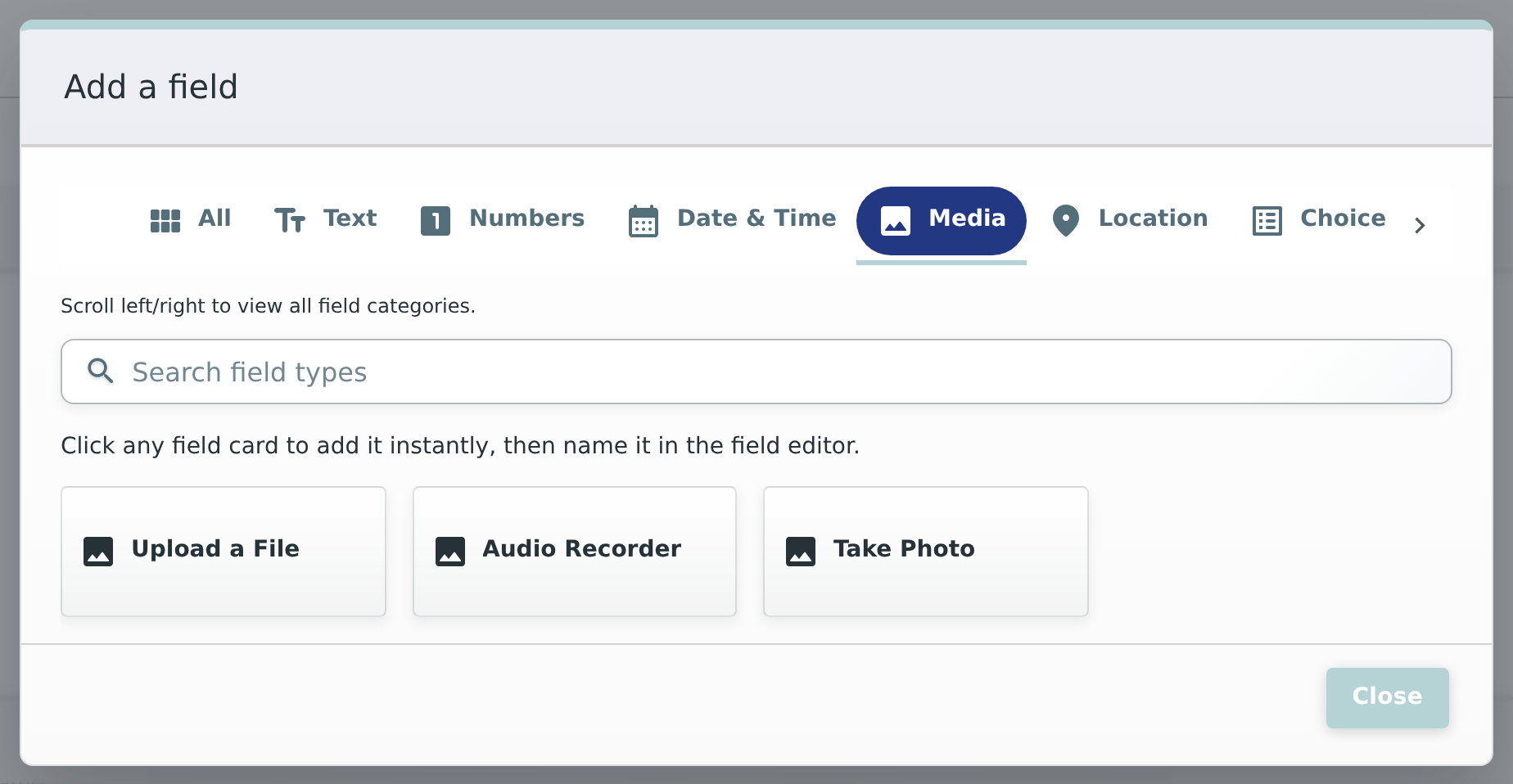
Click the Media tab
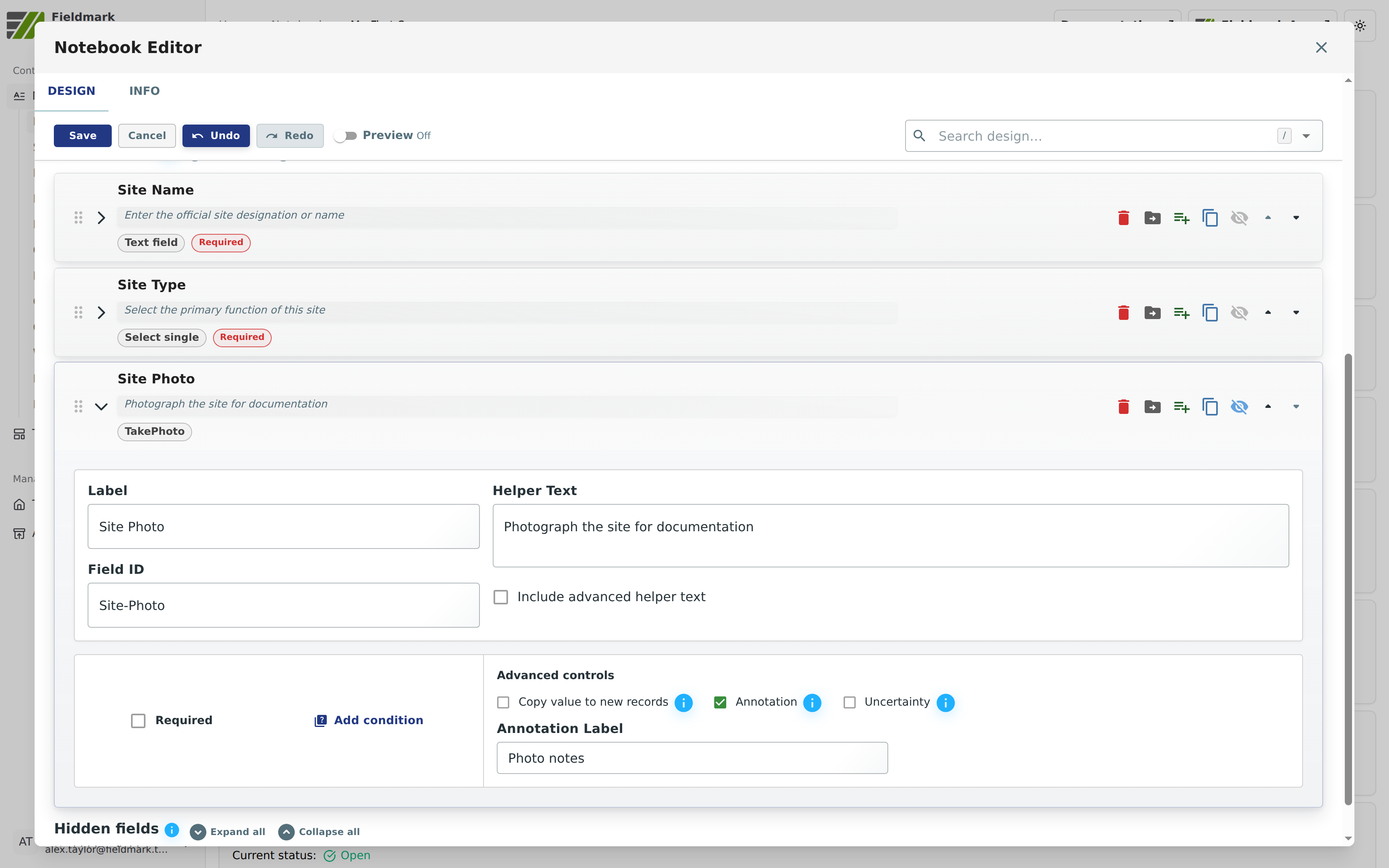
Click the “Take Photo” card (enables camera capture). The field is added immediately
Expand the new field (“New Field” in Visible fields) and change its Label to “Site Photo”
Configure the field:
Helper Text: Type “Photograph the site for documentation”
Leave Required unchecked (photos can be optional)
Annotation: Toggle ON ☑
Annotation Label: Change from “annotation” to “Photo notes”
✓ You’ll Know It Worked When…
The “Site Photo” field appears in the Visible Fields list with “TakePhoto” badge
Helper text displays: “Photograph the site for documentation”
Annotation ☑ is checked with custom label “Photo notes”
All 3 fields are now visible: Site Name, Site Type, Site Photo
Your form is ready for data collection!
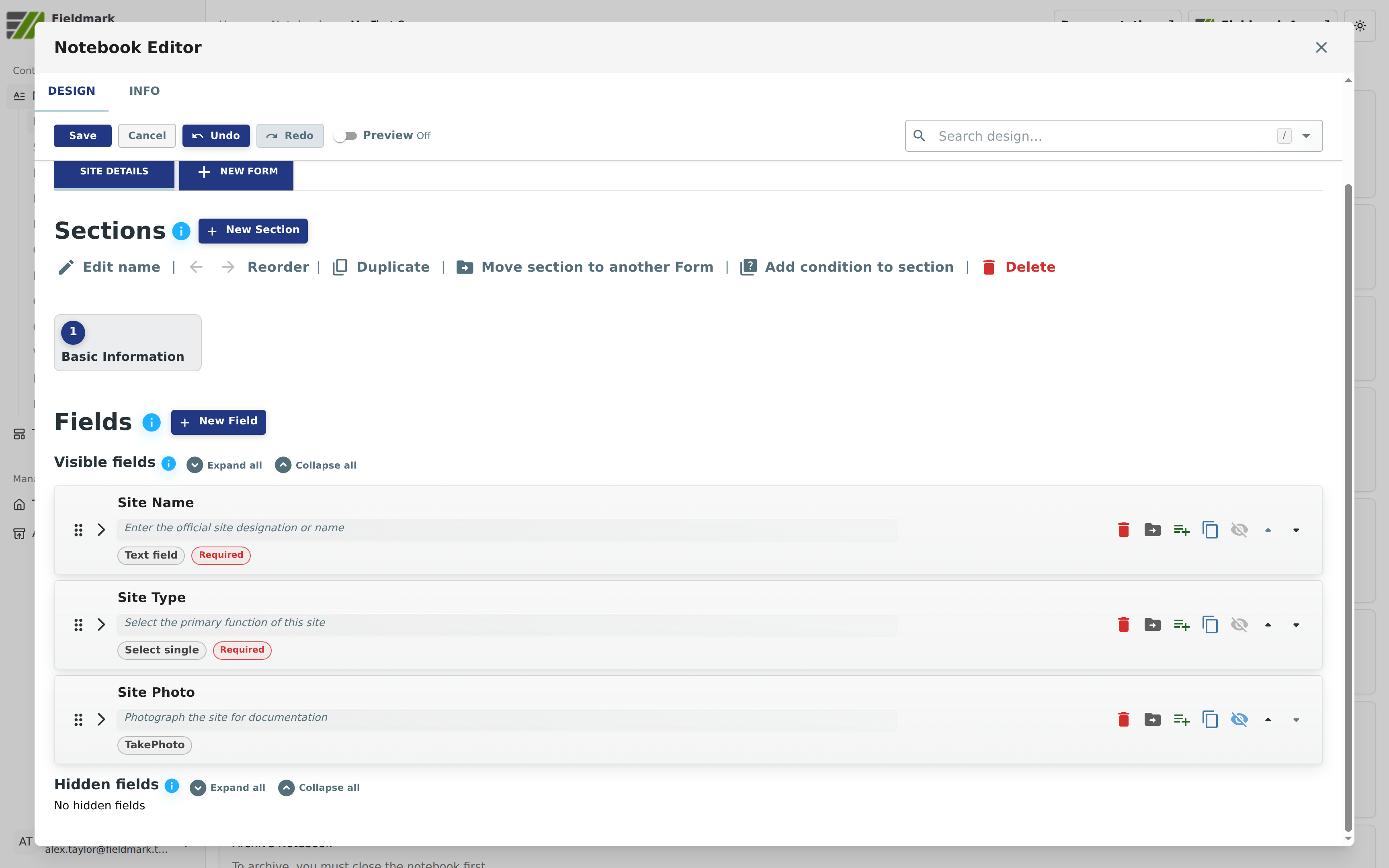
✓ Progress Check: You should now see three fields in your Visible Fields list: Site Name, Site Type, and Site Photo. Each shows its field type badge. You’re doing great!
Preview Your Form ✨ NEW FEATURE
Before configuring Form Settings, you can preview how your form will look to data collectors:
Find the “Preview” toggle in the Editor toolbar (next to the Redo button)
Click to enable Preview
See your form in action - a live preview panel appears on the right side showing exactly how your fields will render
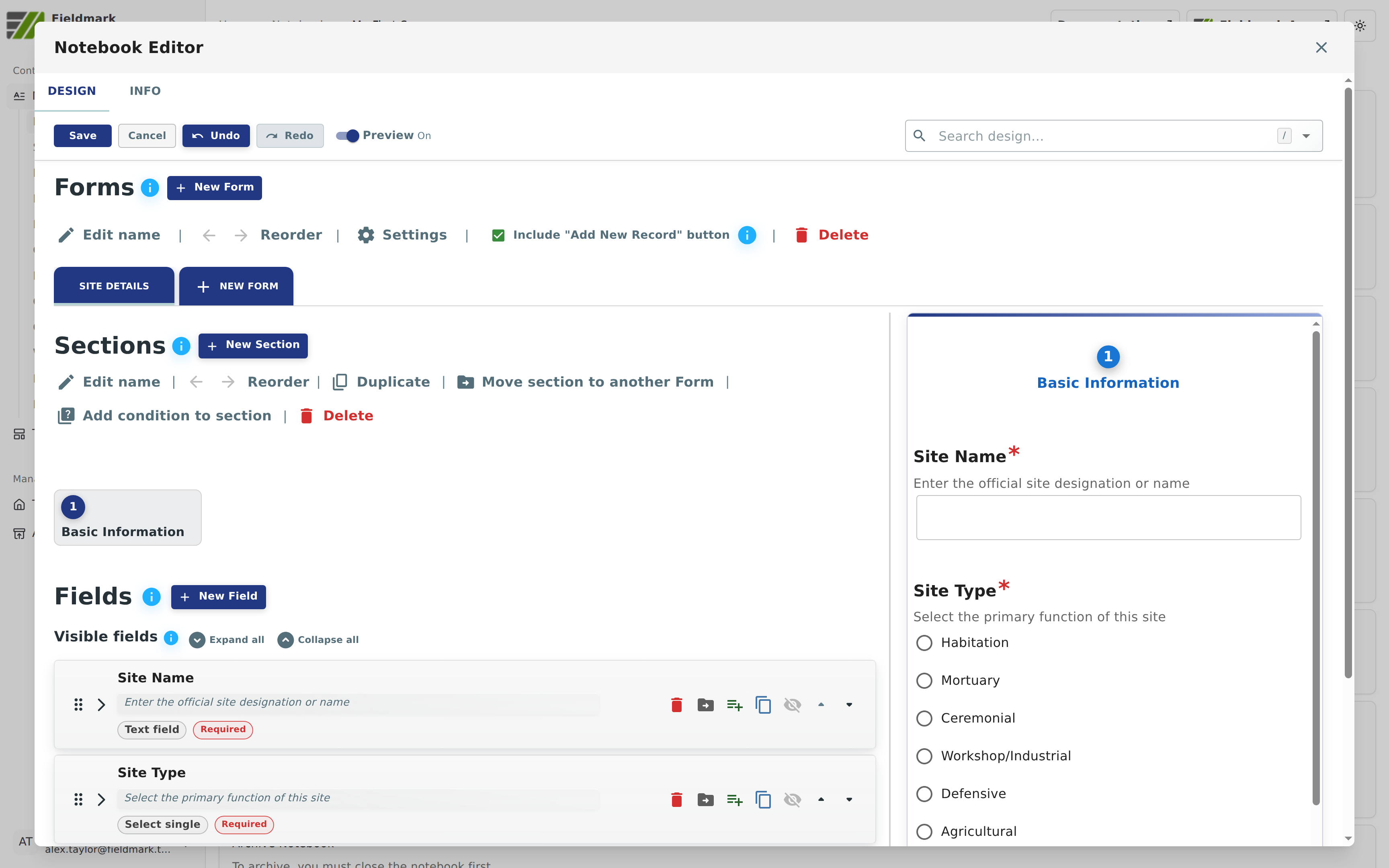
💡 Pro Tip: The Preview feature lets you test field layouts and verify your form looks correct before activating it. Toggle Preview off when you’re ready to continue editing.
Configure Form Settings ⚠️ CRITICAL
This configuration is essential. The Human-Readable ID Field setting prevents your records from displaying as confusing codes like “rec_a7f3b2c1” instead of meaningful names.
Now let’s configure how the form behaves when collecting data.
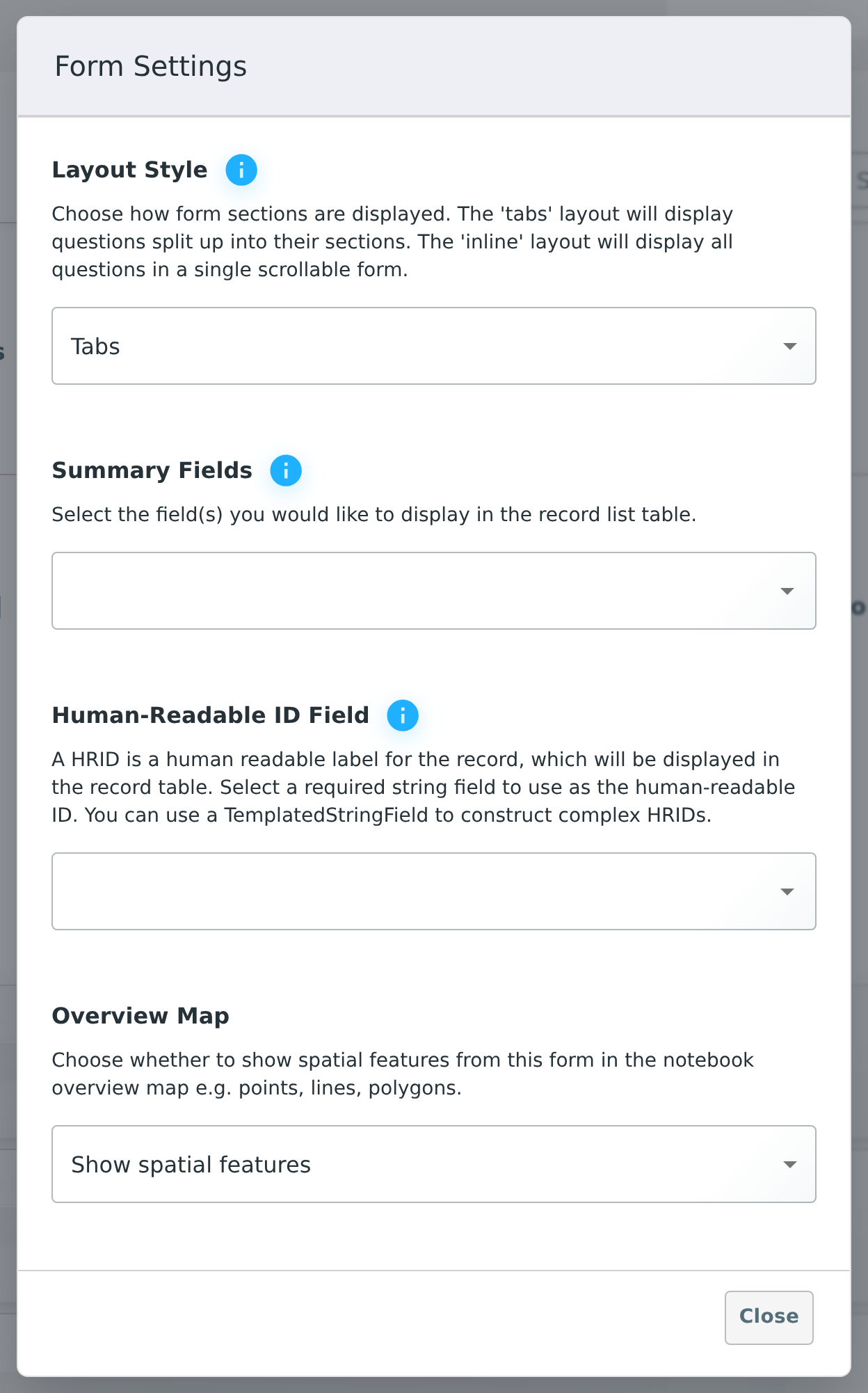
Click “Settings” in the form control row (the row above the SITE DETAILS form tab: Edit name | Reorder | Settings | Include “Add New Record” button | Delete)
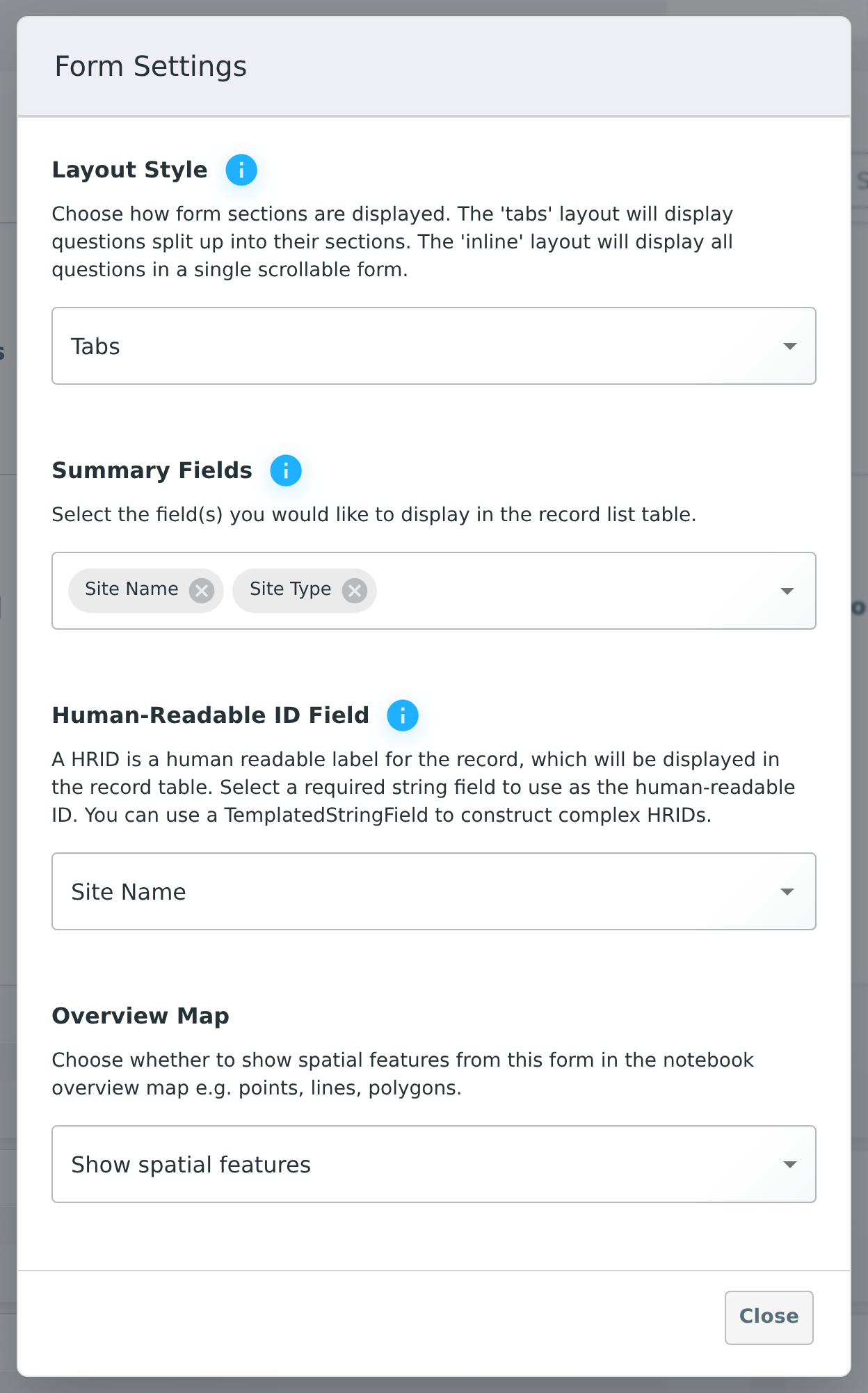
The “Form Settings” dialogue opens with four settings
Configure the settings:
Layout Style: Leave as “Tabs” (sections display as tabs for organised navigation)
Summary Fields: Click the dropdown and select both “Site Name” and “Site Type” (these will show in the record list table)
Human-Readable ID Field: Select “Site Name” (provides meaningful record labels instead of opaque, computer-generated identifiers (UUIDs)). Only required fields that hold text are offered in this dropdown, which is why we made Site Name required. A required single-choice field such as Site Type also qualifies, so you will see it listed too
Overview Map: Leave as “Show spatial features” (controls whether spatial data from this form, such as points, lines, and polygons, appears on the notebook’s overview map)
Click “Close” to return to the form
⚠️ CRITICAL: Human-Readable ID Field
DO NOT skip this setting! This is a very common mistake new users make.
Without setting the Human-Readable ID Field, your records will display as:
❌
rec_a7f3b2c1(meaningless code - which site is this??)❌
rec_9d2e4b8f(impossible to identify!)❌
rec_f1c5a39e(you’ll never find what you’re looking for)With Human-Readable ID Field set to “Site Name”, your records display as:
✅
Ancient Temple Site(instantly recognisable!)✅
Northern Settlement(clear and meaningful)✅
Burial Ground Alpha(easy to find and manage)Set it now before saving! Changing it later won’t fix existing records.
✓ You’ll Know It Worked When…
The Form Settings dialogue shows all four settings configured
Summary Fields displays “Site Name” and “Site Type”
Human-Readable ID Field shows “Site Name”
After closing the dialogue, all 3 fields are visible in your “Basic Information” section
Save Your Work
Important: The Notebook Editor does not auto-save. Let’s save your progress now.
Click the blue Save button in the Editor toolbar
The Editor closes and you’re back on your notebook’s page, with a green confirmation message: “Designer saved successfully.”
To continue editing later, click the Actions tab and choose “Open in Editor” again
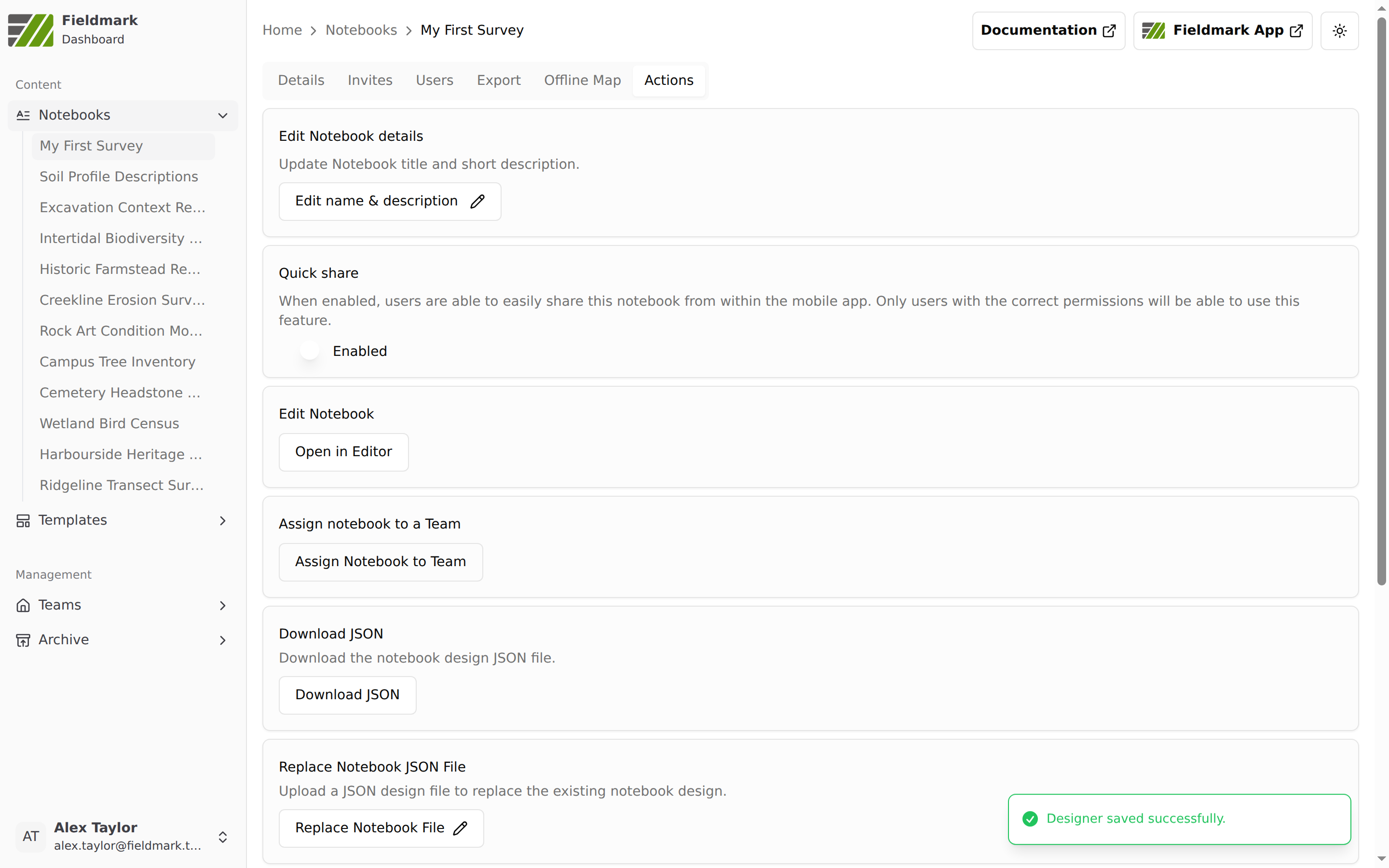
⚠️ Remember to Save: Get in the habit of clicking Save periodically as you work. The Editor closes each time you save, but you can immediately reopen it from the Actions tab to resume editing.
💡 Tip: You can always resume editing your notebook at any time: select your notebook from the list, click the Actions tab, and choose Open in Editor. Your work is saved and ready to continue.
✨ Pro Tip: Start simple like we just did. You can always come back to add more fields, validation rules, or conditional logic. Most successful notebooks begin with 3-7 core fields and evolve based on actual use. Once you’re comfortable with the basics, explore the INFO tab to add project metadata like project lead, organisation, and custom key-value pairs. You can also try adding more field types - date/time fields, multi-line text for observations, location capture, and more!
Step 4: Activate and Test Your Notebook (5-8 minutes)
Time to see your creation in action! Let’s activate your notebook in the Fieldmark app and enter test data.
Open the Fieldmark App
Your notebook has been saved in the Editor. Now let’s activate it for data collection:
Open a new browser tab and navigate to your Fieldmark data collection app URL (https://app.fieldmark.app)
Log in with the same credentials you used to access the Editor
Activate Your Notebook
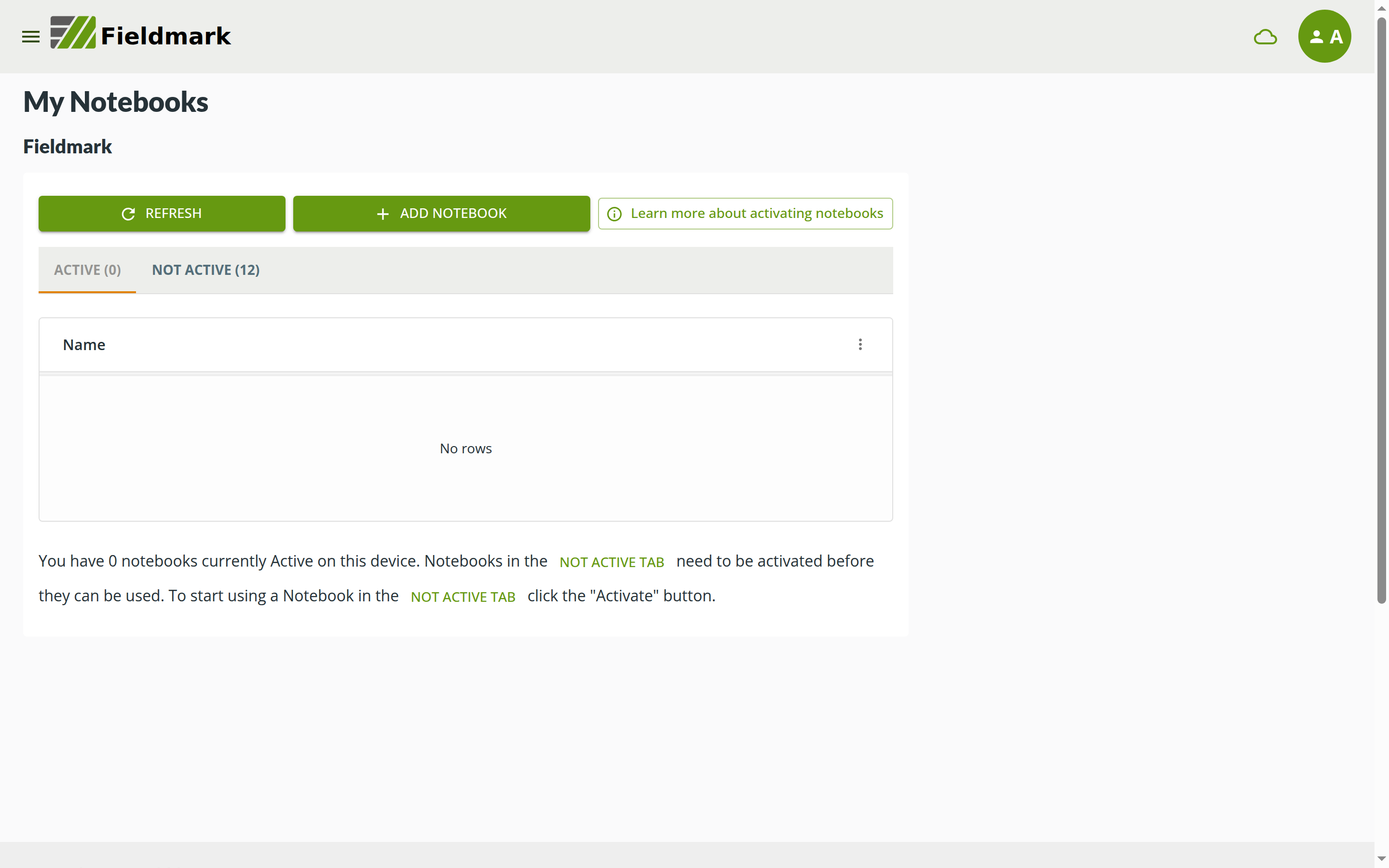
When the app opens, you’ll see the “My Notebooks” screen, with REFRESH and ADD NOTEBOOK buttons, a “Learn more about activating notebooks” link, and two tabs: ACTIVE and NOT ACTIVE (the number in parentheses on each tab is a count of notebooks):
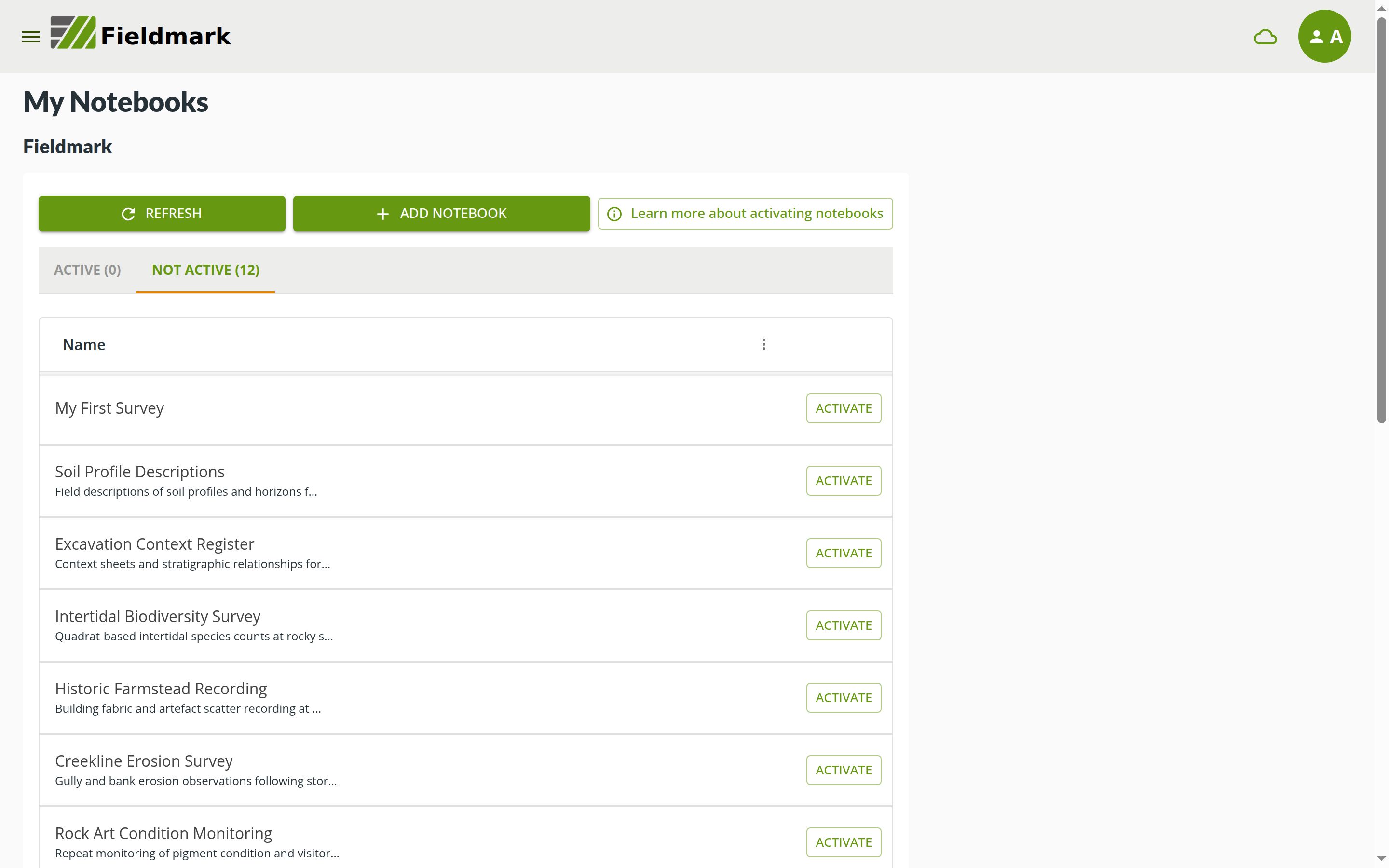
Click on the “NOT ACTIVE” tab - you’ll see a list of notebooks that need activation
Find your notebook in the list (look for “My First Survey” or whatever name you chose)
If you have many notebooks, scroll through the list to locate yours
Click the green “ACTIVATE” button next to your notebook
A modal dialogue appears explaining activation. A modal is a small window that opens on top of the page and waits for an answer: the rest of the screen is unavailable until you confirm or cancel
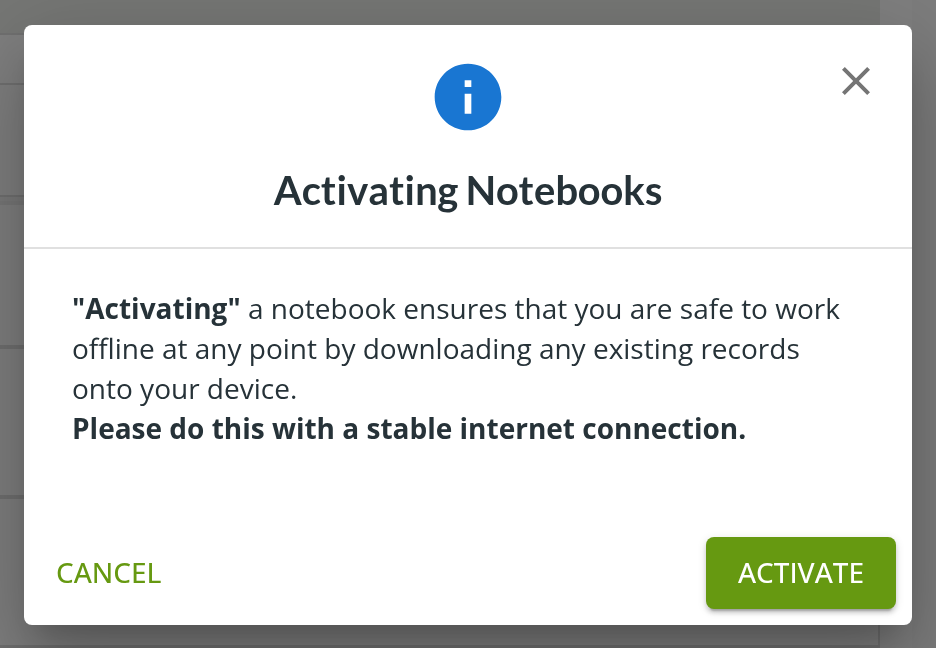
Read the information in the “Activating Notebooks” modal:
“Activating” a notebook ensures that you are safe to work offline at any point by downloading any existing records onto your device
It asks you to do this with a stable internet connection
Click the green “ACTIVATE” button in the modal to confirm
You’ll be automatically taken to the “ACTIVE” tab - your notebook now appears in the Active list
💡 Notebooks can also be de-activated later from the notebook’s Settings tab (see Notebook Settings below). The My Notebooks screen has a “Learn more about activating notebooks” link if you want the details.
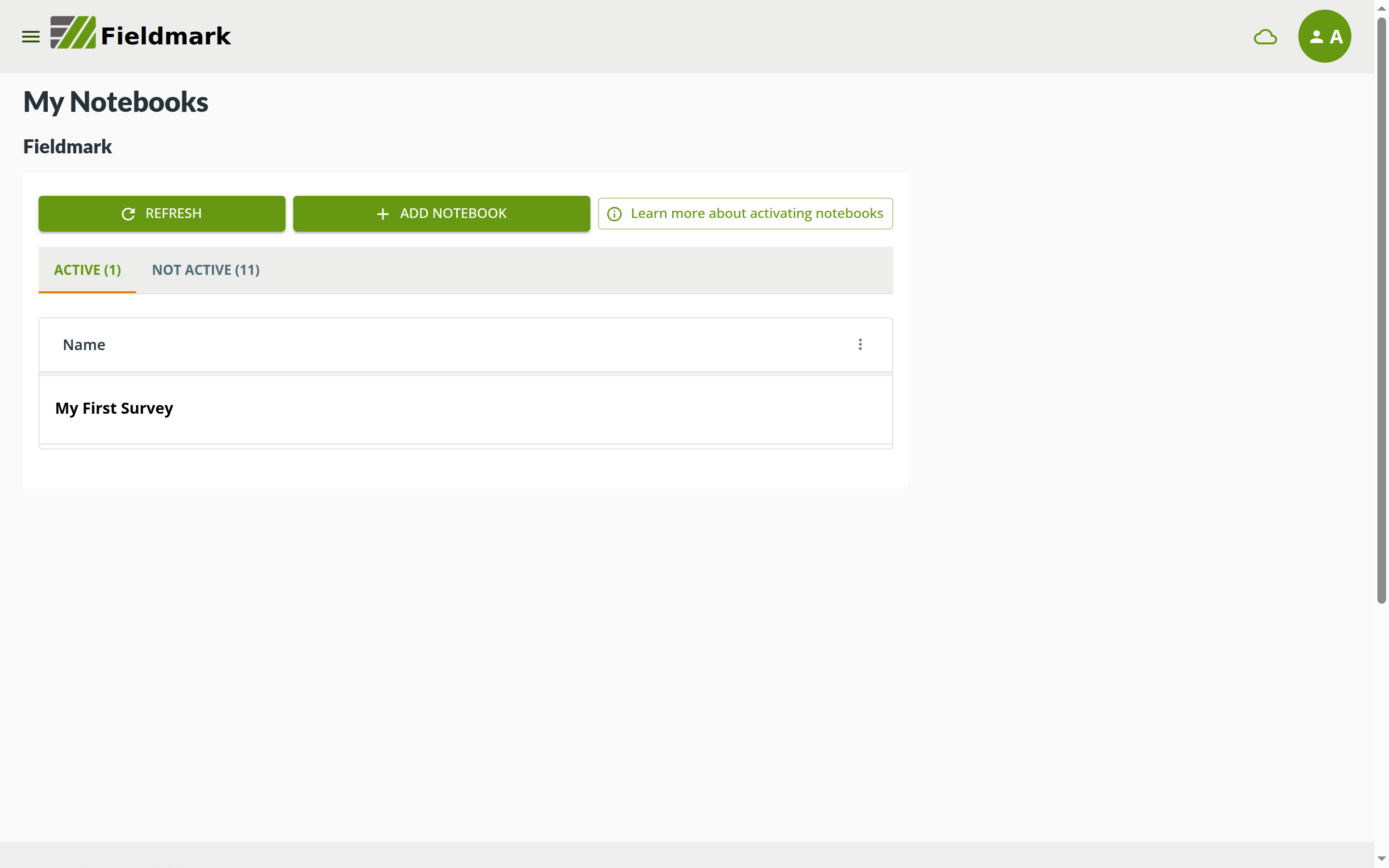
💡 What does Active mean? When a notebook is “Active”, all data you collect will be saved to your device for offline work. Activating downloads existing notebook records to your device. We recommend completing this while you have a stable internet connection.
⚠️ Don’t see your notebook? If your notebook doesn’t appear in the NOT ACTIVE list, make sure you’re logged in with the same credentials you used in the Editor. If you still don’t see it, contact your Fieldmark administrator about permissions.
✓ You’ll Know It Worked When…
The view automatically switches to the “ACTIVE” tab showing “ACTIVE (1)”
Your notebook appears in the list under the ACTIVE tab
You can now click on the notebook name to open it
Understanding Offline-First Design
Before we continue, here’s an important feature: Fieldmark is designed to work offline.
💡 Offline-First: No network connection is needed for data collection in the field. Your data is saved locally to your device, and it automatically syncs to the server when you have connectivity (unless you’ve set Sync Mode to “Sync off” in Settings). This means you can collect data anywhere, anytime.
This is why we “activate” notebooks - the activation process downloads the notebook structure to your device so you can work without internet.
Open Your Notebook
Now let’s open your notebook to start collecting data:
Click on your notebook’s name in the ACTIVE tab (“My First Survey”, or whatever name you chose)
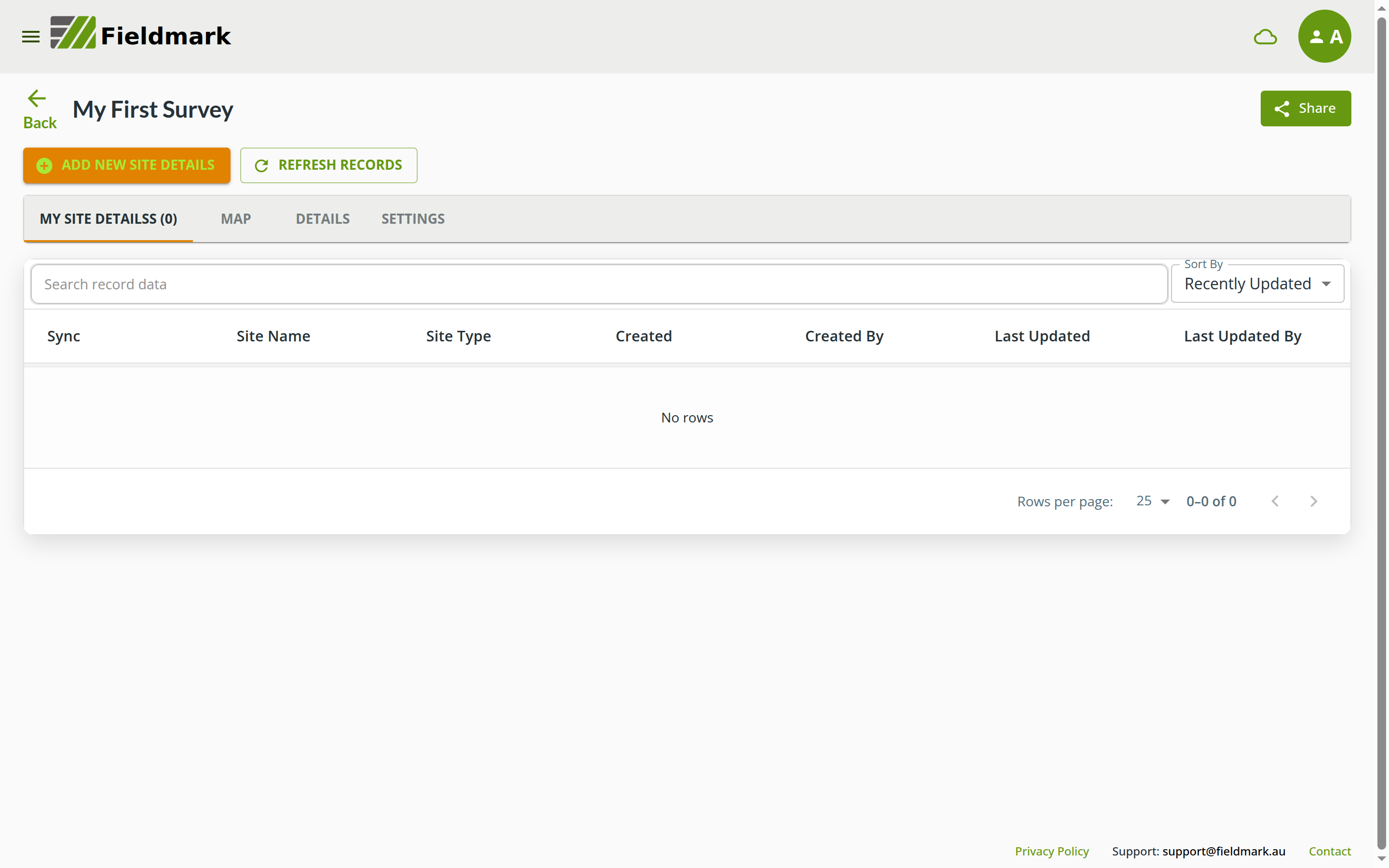
You’ll see the record list interface:
Share button (green, top right): opens a dialogue that generates a temporary QR code for sharing the notebook with another user. It does the same job as the Quick share panel on the SETTINGS tab
ADD NEW SITE DETAILS button - for creating new records
REFRESH RECORDS button - refreshes the displayed list from the local database (useful to see records synced in the background)
MY SITE DETAILSS (0) tab - shows your record list (currently empty). Yes, the double “s” is expected: the app adds an “s” to your form’s name (“Site Details” becomes “Site Detailss”)
Additional tabs: MAP, DETAILS, SETTINGS
Empty table with column headers: Sync, then your Summary Fields (Site Name and Site Type), then Created, Created By, Last Updated, and Last Updated By, plus a “Search record data” box and a “Sort By” dropdown
Because this is a brand new notebook, the table is empty
Create Your First Record
Let’s add your first record:
Click the orange “ADD NEW SITE DETAILS” button
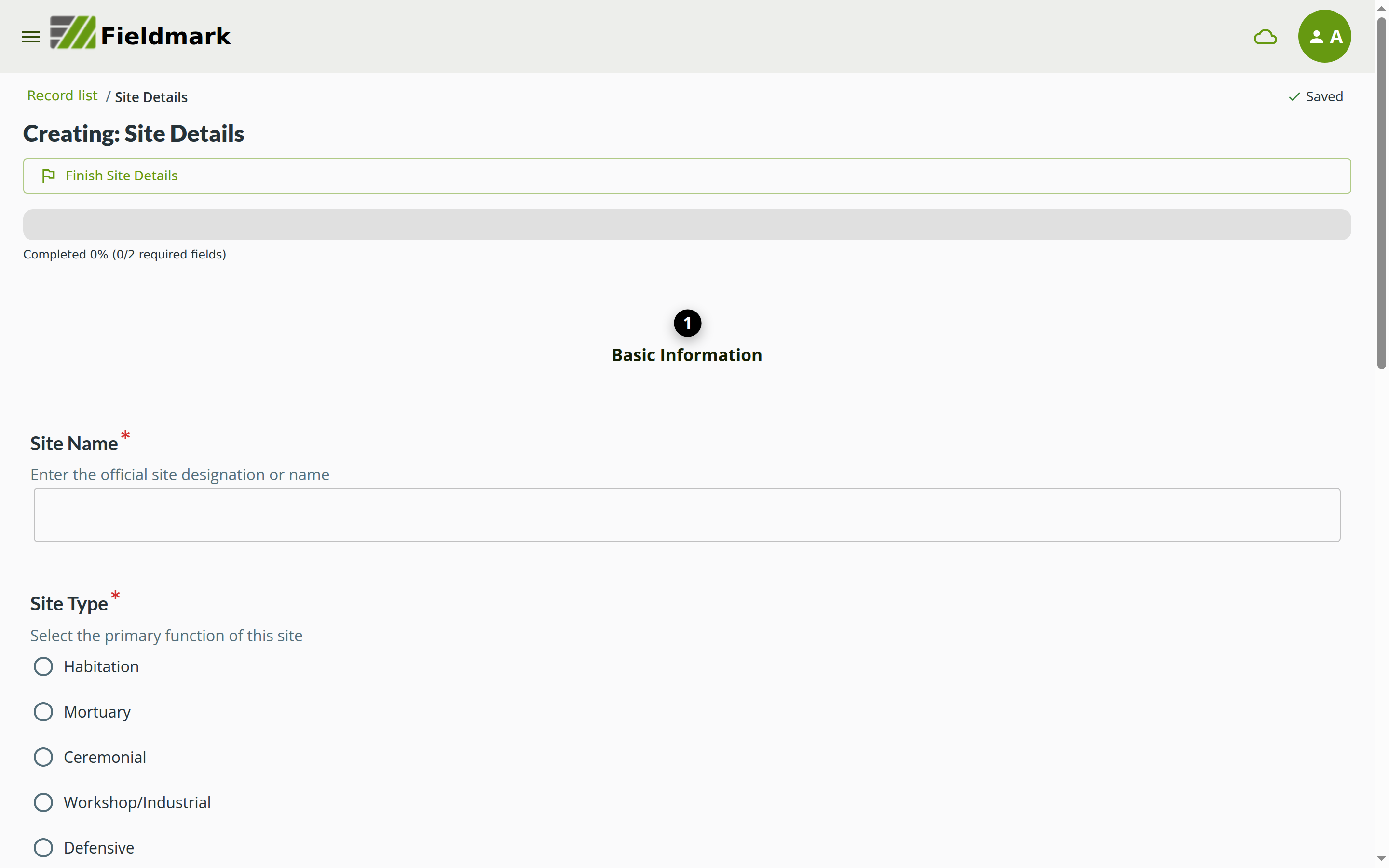
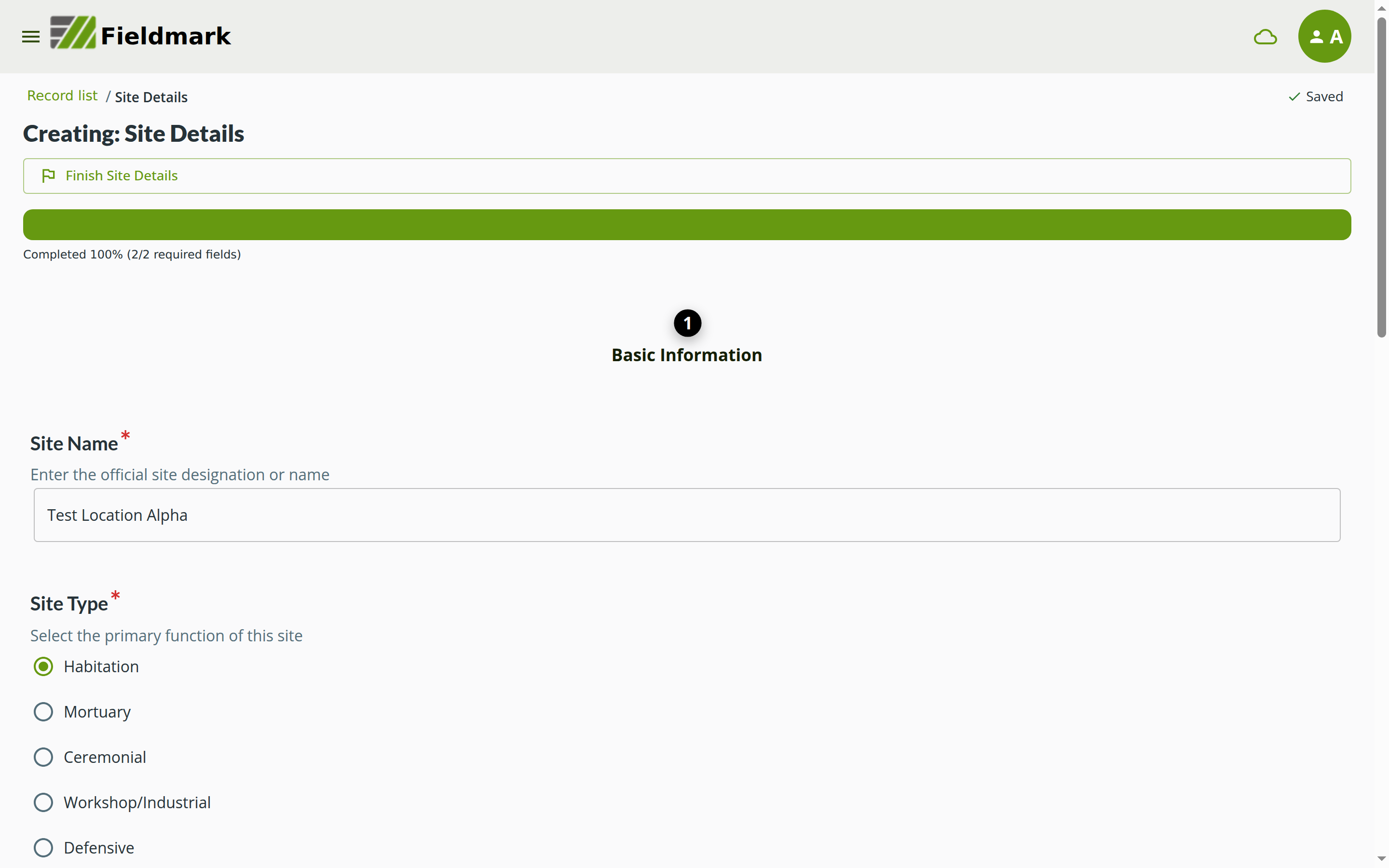
You’ll see the data entry form with:
A “Record list” breadcrumb at the top left: returns you to the record list at any time (your entries are saved as you type)
“Finish Site Details” button: Completes the record when you’re done
Progress bar: Shows completion percentage (starts at 0%, counting required fields)
“Saved” indicator: Appears in the top-right as changes are auto-saved
Required fields: Marked with a red asterisk (*)
Fill in Site Name:
Type “Test Location Alpha” in the Site Name field
Helper text shows: “Enter the official site designation or name”
Fill in Site Type:
Select “Habitation” from the radio button options
Notice the blue dog ear icon below the options - this opens annotation and uncertainty fields
Optional: Try the Annotation feature (if you want to explore it):
Click the blue dog ear icon below the Site Type options
An annotation text area and uncertainty checkbox appear below
Type a note like: “Surface scatter suggests domestic occupation, but no structures visible.”
Check the uncertainty checkbox to flag this observation as uncertain
This is a powerful feature for capturing data quality context!
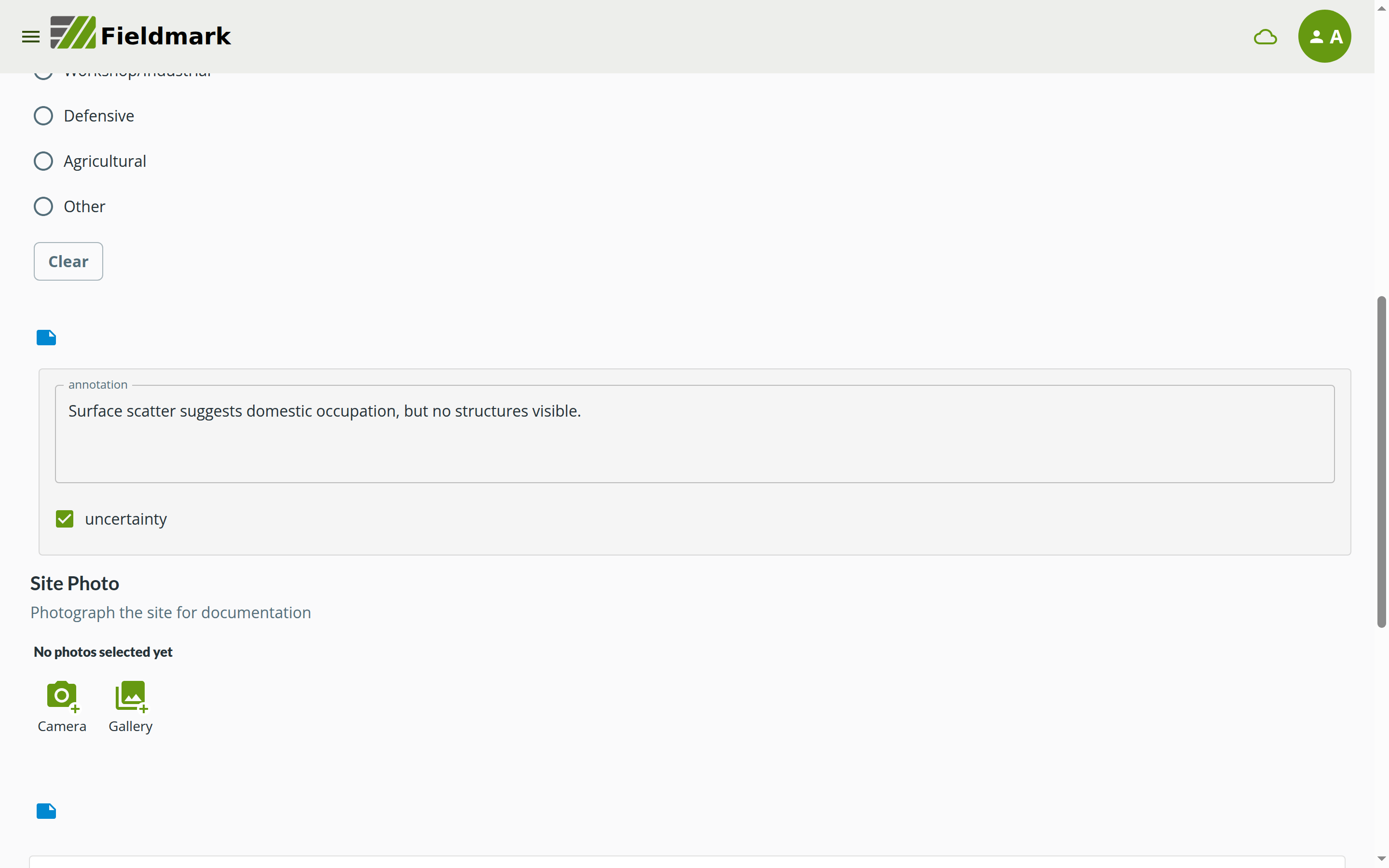
Add a Site Photo:
Scroll to the Site Photo section
You’ll see “No photos selected yet” with two buttons: Camera and Gallery
Click Camera to take a new photo, or Gallery to choose photos already on your device (you can select several at once)
Allow camera or photo access if your device or browser asks
Take or choose any photo (even of your desk - this is just practice!)
Note: Site Photo also has a blue dog ear icon for “Photo notes” annotation
Finish Your Record
Your entries are already saved as you type. The “Saved” indicator confirms each change is stored on your device as a draft. Finishing is a separate step that completes the record and returns you to the record list:
Click the green “Finish Site Details” button (it appears at both the top and the bottom of the form)
If any required fields are incomplete, a dialogue asks “Are you sure you want to finish Site Details?” and tells you how many fields still have errors. You can click the error line to jump to the offending field, then choose:
GO BACK AND REVIEW - return to the form and complete it (usually the right choice)
FINISH ANYWAY - finish with incomplete fields
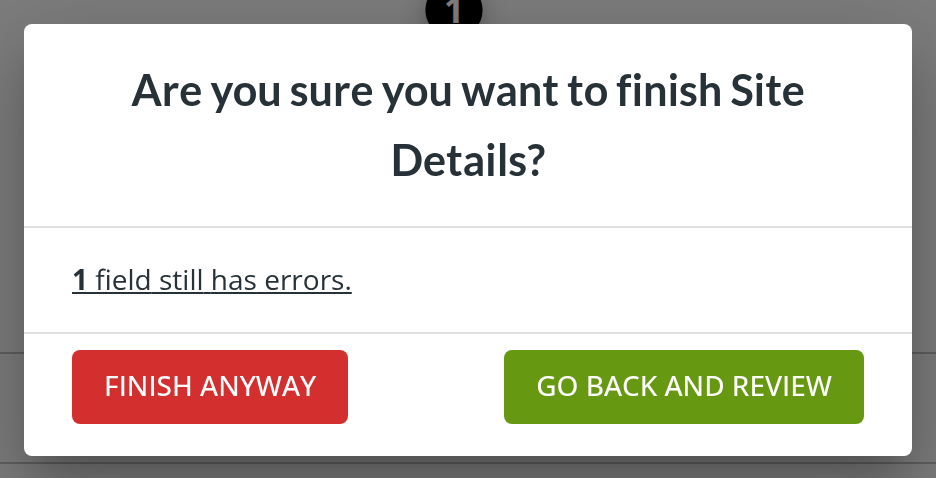
When everything is filled in, clicking finish takes you straight back to the record list
Congratulations! 🎉 You’ve just created your first Fieldmark record!
✓ You’ll Know It Saved When…
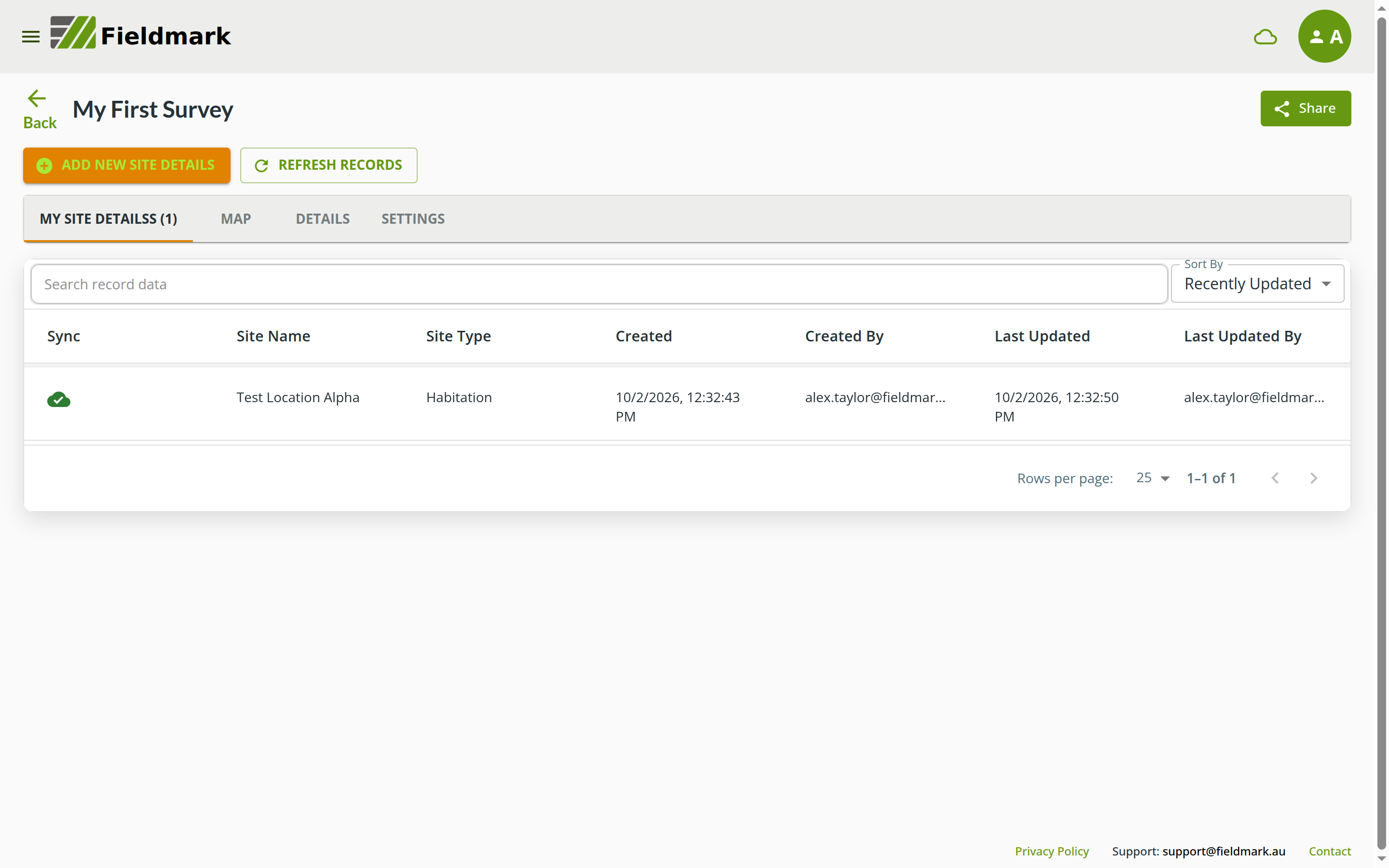
You’re automatically returned to the record list view. Here’s what you’ll see:
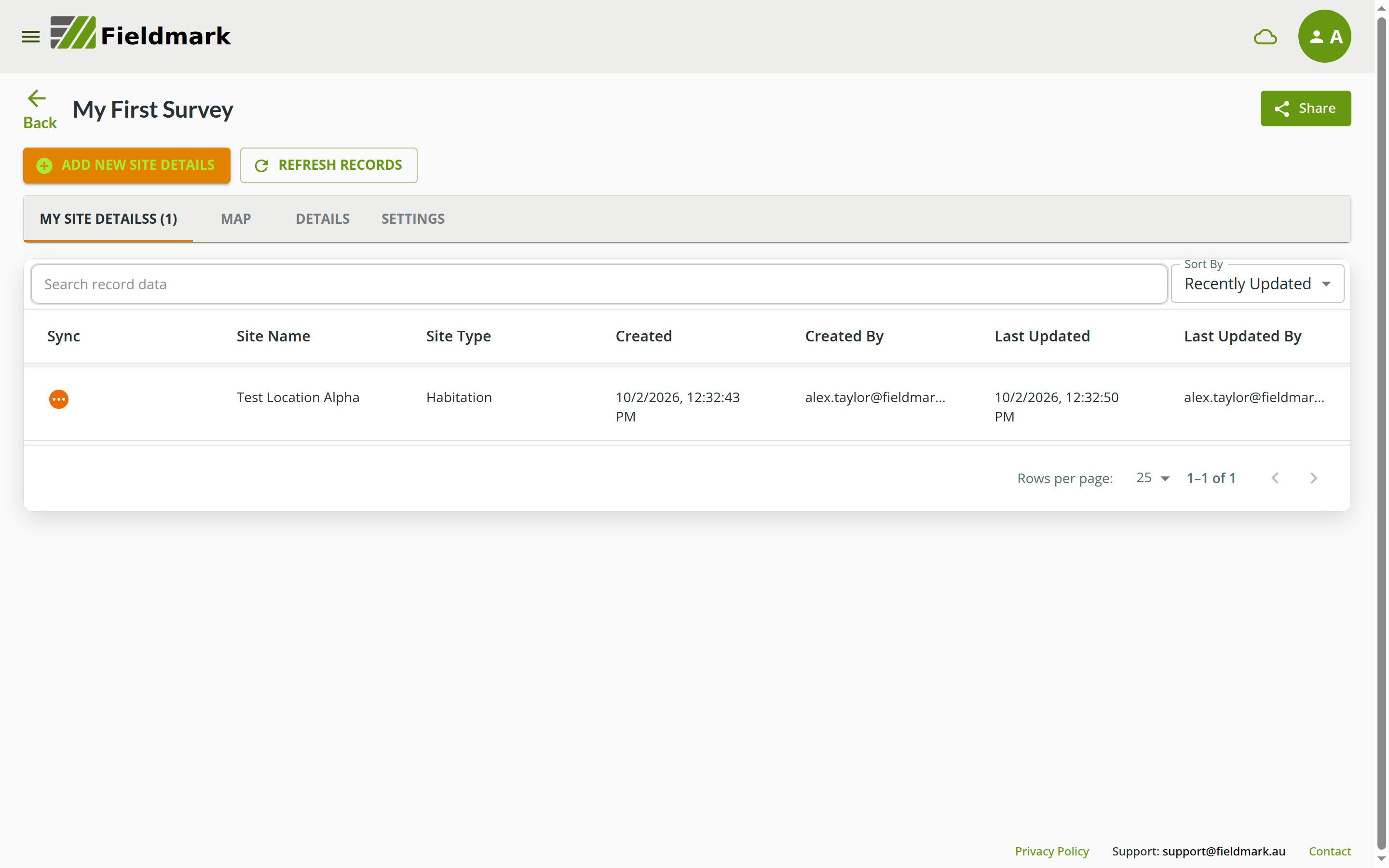
MY SITE DETAILSS (1) tab now shows 1 record (changed from “(0)”)
Your record appears in the table with the following columns:
Sync: Orange icon with three dots (indicates not yet synced to server)
Site Name: “Test Location Alpha” (Summary Field #1)
Site Type: “Habitation” (Summary Field #2)
Created: Timestamp like “8/3/2026, 1:05:02 AM”
Created By: Your username (e.g., “alex.taylor@fieldmark.test”)
Last Updated: Close to Created for a new record
Last Updated By: Your username
Pagination at bottom shows “1-1 of 1”
💡 About Sync: Fieldmark automatically syncs records when you’re online. The orange icon with three dots means the record hasn’t synced to the server yet. Once synced, it will turn into a green cloud icon with a checkmark. If other team members have added records, click the REFRESH RECORDS button to update your view with records that synced in the background.
If multiple team members edit the same record while offline, Fieldmark has a conflict resolution interface in the data collection app to help you merge changes.
View Your Record
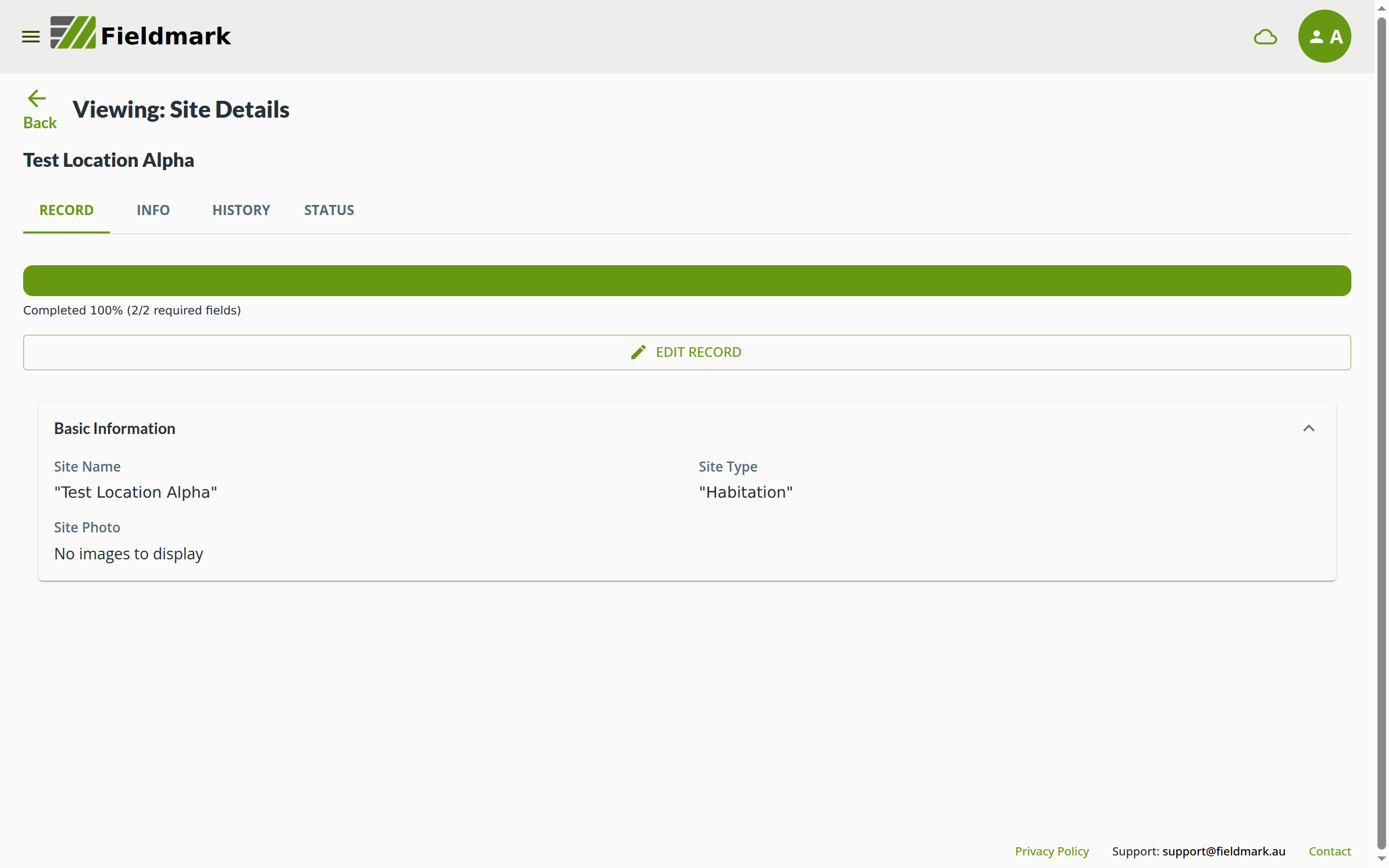
You can click on any record in the list to view its details:
Click on the record row (e.g., “Test Location Alpha”)
The Record View opens showing all your captured data
From here you can:
Review all field values in a read-only format
Click EDIT RECORD to make changes
Switch to INFO tab to see metadata (creation time, last update, etc.), the HISTORY tab to see the record’s edit history, or the STATUS tab to see how complete the record is
Click Back to return to the record list
Notebook Settings
Before we finish, let’s explore the SETTINGS tab to understand sync and data management options.
Click on the SETTINGS tab (next to the MY SITE DETAILSS, MAP, and DETAILS tabs)
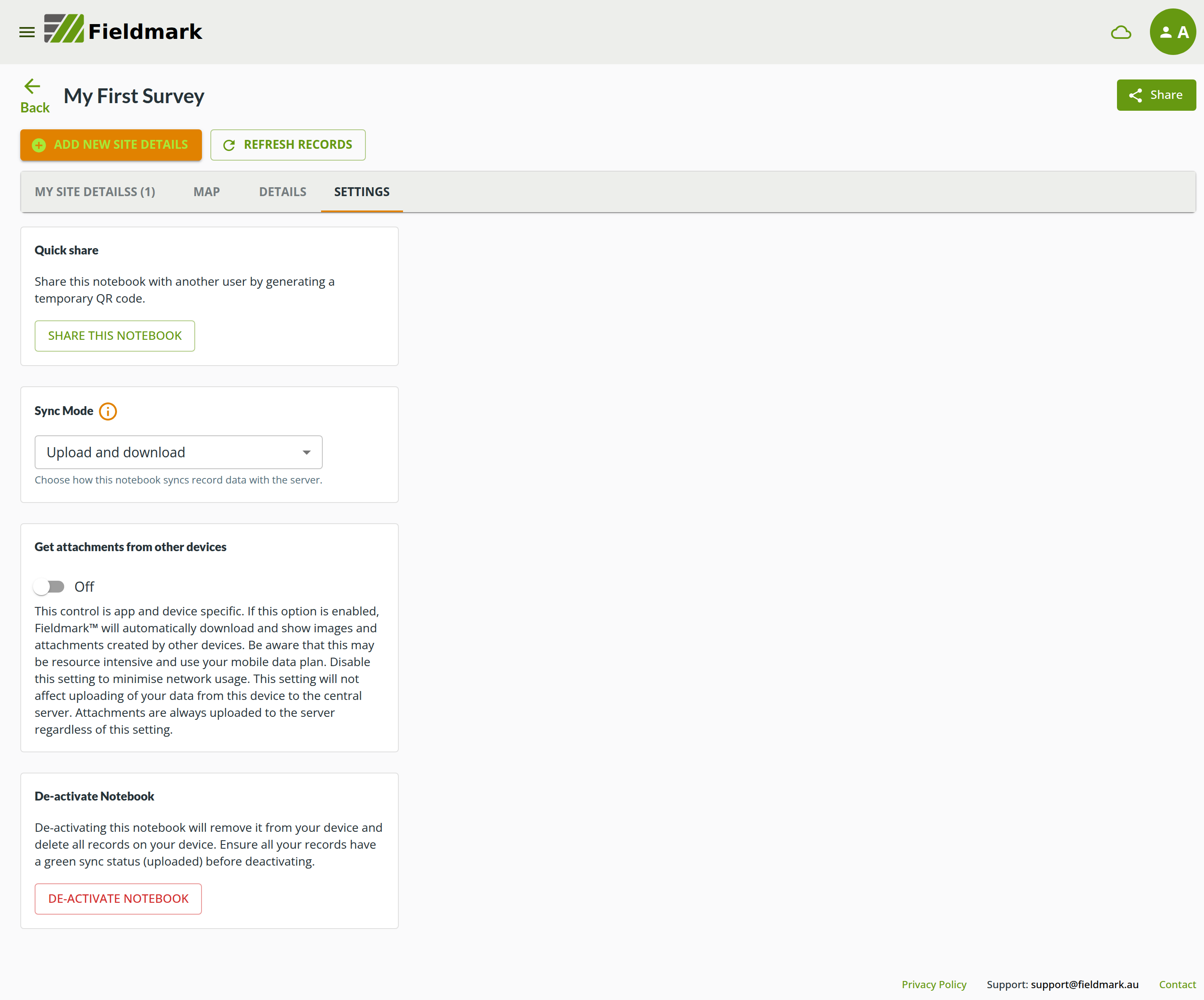
You’ll see several important controls:
Quick share
SHARE THIS NOTEBOOK generates a temporary QR code for sharing the notebook with another user. The green Share button above the tabs opens the same dialogue
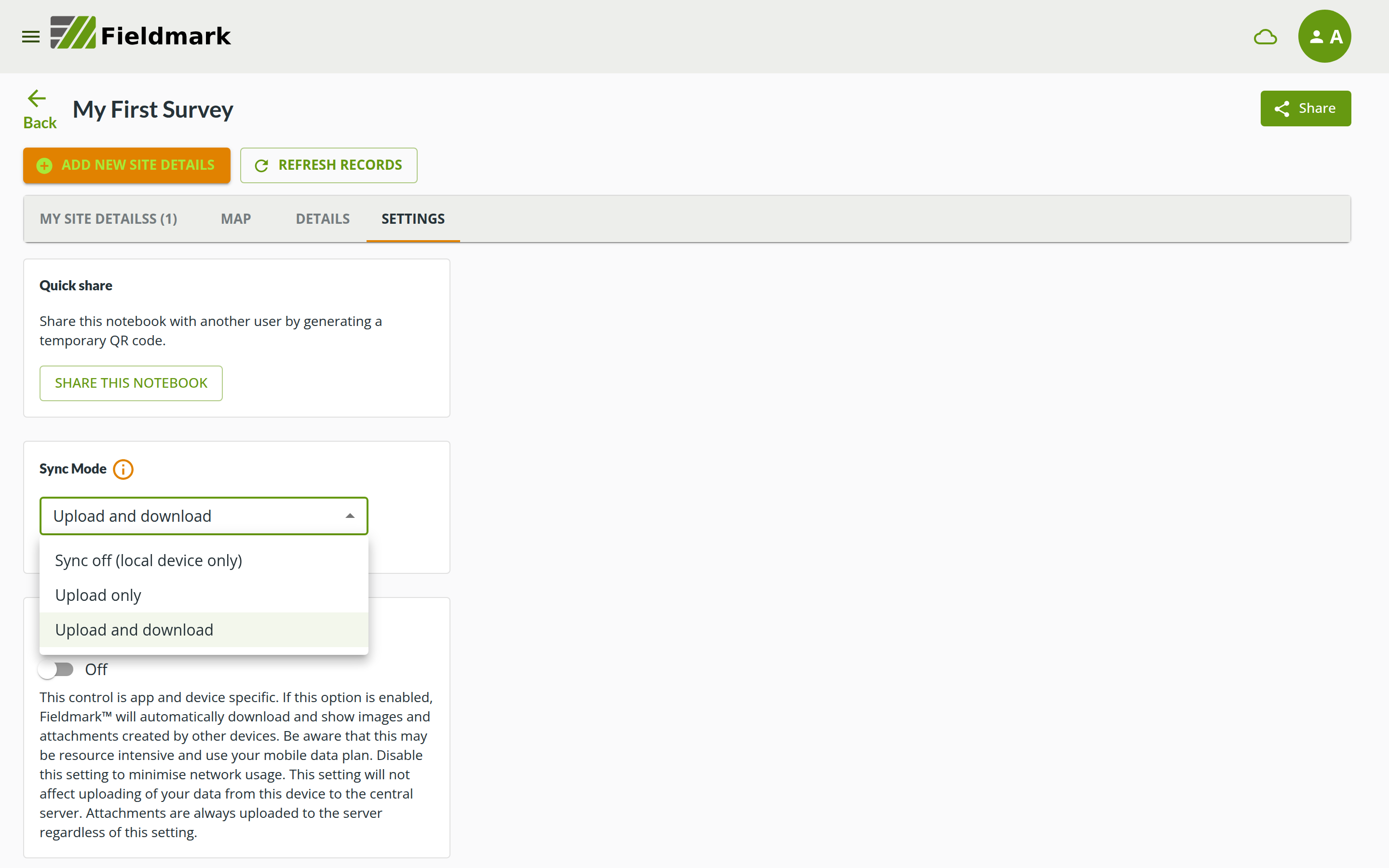
Sync Mode
A dropdown that chooses how this notebook syncs record data with the server. There are three modes:
Upload and download (the default): your records upload to the server, and records from other team members download to your device
Upload only: your records still upload, but nothing new downloads (useful for saving mobile data in the field)
Sync off (local device only): nothing moves in either direction; your data stays safely on your device until you choose another mode
Whatever the mode, your data is always saved locally first: changing sync mode never deletes anything
Get attachments from other devices
Toggle switch (Off by default)
When enabled, Fieldmark automatically downloads photos and attachments created by other team members
Trade-off: Lets you see what your team is documenting, but uses more storage and mobile data
Important: Your uploads always go to the server regardless of this setting
Recommended: Keep OFF to minimise data usage, turn ON when on WiFi if you want to review team photos
De-activate Notebook
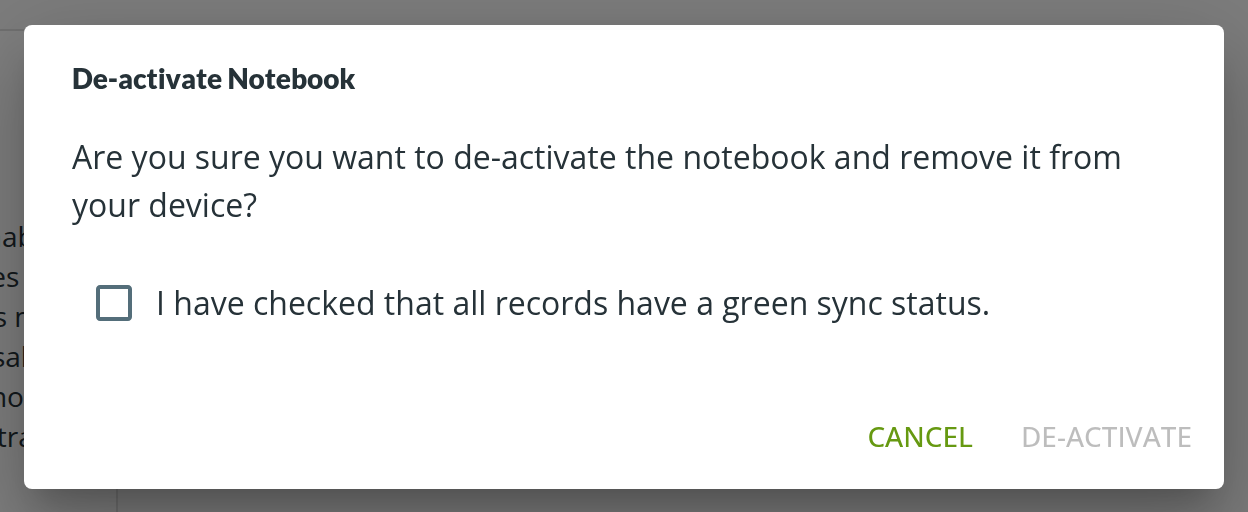
Removes the notebook from your device and deletes all records stored on this device. The panel reminds you to check that every record shows a green sync status (uploaded) first
Clicking DE-ACTIVATE NOTEBOOK opens a confirmation dialogue: “Are you sure you want to de-activate the notebook and remove it from your device?” You must tick the acknowledgement (“I have checked that all records have a green sync status.”) before the DE-ACTIVATE button becomes available
Use this only when you’re done using this notebook on this device; you can always re-activate it later
💡 Data Management Tip: If you’re working in areas with limited connectivity or want to conserve mobile data, set Sync Mode to “Upload only” (or “Sync off”) while collecting data. Switch back to “Upload and download” when you have WiFi.
💡 Learn more: Synchronisation has its own page in the Fieldmark documentation, covering sync modes, attachment downloads, and sync status icons in detail.
🎯 You Did It!
Congratulations! You’ve successfully created your first Fieldmark notebook and collected your first record. You’ve:
✅ Created a notebook in the Notebook Editor
✅ Added forms, sections, and fields with proper configuration
✅ Configured Form Settings (Summary Fields, HRID)
✅ Activated the notebook in the Fieldmark app
✅ Created and saved your first record
✅ Learned about sync settings and data management
This is a major milestone! You now understand the core Fieldmark workflow from design to data collection.
Success Checklist
Congratulations! 🎊 Let’s review everything you’ve accomplished:
Logged in to Fieldmark and accessed your Dashboard
Created a new notebook using the Notebook Editor
Added three fields: text, choice, and photo
Configured the Human-Readable ID Field (critical step!)
Saved your notebook (and understood that Save closes the Editor)
Activated your notebook in the Fieldmark app
Created and saved your first record
Saw your record display properly in the records list
Understand how to edit and improve your notebook
If you’ve ticked all these boxes, you’re officially a Fieldmark notebook creator! 🎯
Next Steps
Ready to take your notebook further? All of these features are managed through the Dashboard after selecting your notebook from the list:
Invite team members - Share your notebook and assign roles (Data Collector, Reviewer, Viewer, Admin)
Add more forms, sections, and fields - Build out your data collection structure
Export your data - Download records as CSV, JSON, or other formats for analysis
Turn your notebook into a template - Reuse and modify your design for similar projects
Explore conditional logic - Make forms that adapt based on user input
Try advanced field types - Geolocation, related records, auto-incrementers, and more
💡 Templates Are Advanced: We started with direct notebook creation because it’s best to field-test your design before creating reusable templates. Once you’ve used your notebook in real scenarios and refined it based on actual needs, you can convert it into a template for future projects. This approach prevents over-engineering and ensures your templates reflect practical requirements.
💡 Dashboard Access: Log into the Dashboard, select your notebook from the list, and explore the management options available to you based on your permissions.
Troubleshooting {optional-reference}
💡 Note: This section is optional reference material. Most users won’t encounter these issues. Refer to this section if you get stuck.
Can’t Find the Notebook Editor
Solution: Look for “Notebooks” in your navigation, click “Create Notebook” and supply required information. Note the name you give your notebook. Then find your notebook at the top of the list. Click the notebook name → Actions tab → Open in Editor. If you don’t see this option, check with your administrator about permissions.
Notebook Not in List After Creation
Solution: New notebooks appear at the TOP of the list (the list is sorted newest first). If you still can’t see it, use the search bar to find your notebook by name, or check the left sidebar under Notebooks.
Fields Not Showing in the Form
Solution: Clicking a field card adds the field instantly: check the “Visible fields” list for a field called “New Field”. Also check that your fields are in “Visible fields”, not “Hidden fields”, in the Editor.
Editor Closed After Clicking Save
This is expected behaviour: The Editor does not auto-save. Clicking Save closes the Editor and returns you to your notebook’s page (“Designer saved successfully.”). Your work is saved. To resume editing: Actions → Open in Editor.
Records Show “rec-xxxxx…” Instead of Readable Names
Solution: This is a common issue! If no Human-Readable ID Field is set, records are identified by a long code like “rec-de618aef-…”: it appears as the record’s heading when you open it, and, if no Summary Fields are set either, in the record list under a column headed “Field ID”. Go back to editing your notebook: Actions → Open in Editor → click Settings in the form control row → set the Human-Readable ID Field to “Site Name” → Close, then Save. New records will display properly (existing records will keep the old format).
Notebook Not Appearing in the Fieldmark App
Solution: Make sure you’re logged into the Fieldmark app (https://app.fieldmark.app) with the same credentials you used in the Dashboard. If you still don’t see it, check with your administrator about team permissions.
Photos Won’t Upload
Solution: On mobile, check camera permissions in your device settings. On desktop, the Take Photo field works best on mobile devices.
Get Help
Documentation: Comprehensive guides for all Fieldmark features
Team Support: Ask your team administrator for organisation-specific guidance
In-app Help: Look for the help icon (?) throughout the interface
Keep Learning
You’ve mastered the basics - now it’s time to experiment! Try creating a notebook for a real use case, test it on mobile devices, and explore the features that matter most to your work.
Welcome to the Fieldmark community! 🎉
Remember: Every expert was once a beginner. You’ve taken your first steps, and that’s the hardest part. Keep experimenting, keep learning, and most importantly - keep collecting great data!